How to Protect Family Privacy During Video Calls
· Updated

Quick answer: Point the camera away from shared spaces, check what the meeting app will send, and keep its camera-off button within reach. Background effects and Xamera's Advanced Privacy feature can help, but neither can guarantee that a family member will never appear. If someone enters the frame, turn the camera off immediately.
Before the call
- Place your camera so a doorway or shared area is outside the frame. A wall or other plain surface is easier to check than an open room.
- Ask anyone nearby whether they are comfortable being visible or audible, and agree on a signal for an interruption. A background filter does not mute your microphone.
- Open the meeting app's final preview. Check the edges of the frame and any screen-sharing source, not just the camera app's preview.
- Find the meeting app's camera-off and microphone-mute controls before joining. If a family member enters, use those controls rather than waiting for an effect to react.
If you cannot keep a private space out of view, join with the camera off when the meeting permits it. If a camera-on policy applies, discuss an exception or another location with the organizer instead of relying on software to make the room private.
What camera effects can and cannot do
Background blur or replacement can obscure part of a room, but moving people and objects may still appear at the edges. Face pixelation can obscure a detected face; it does not hide a person's voice, clothing, or everything else in the frame.
Xamera offers background effects, face blur and pixelation, and an Advanced Privacy feature designed to hide its output when someone else is in view. Treat automatic hiding as an extra safeguard, not a promise: detection may be late or miss a person. Test it before an important call and keep the manual camera-off control available.
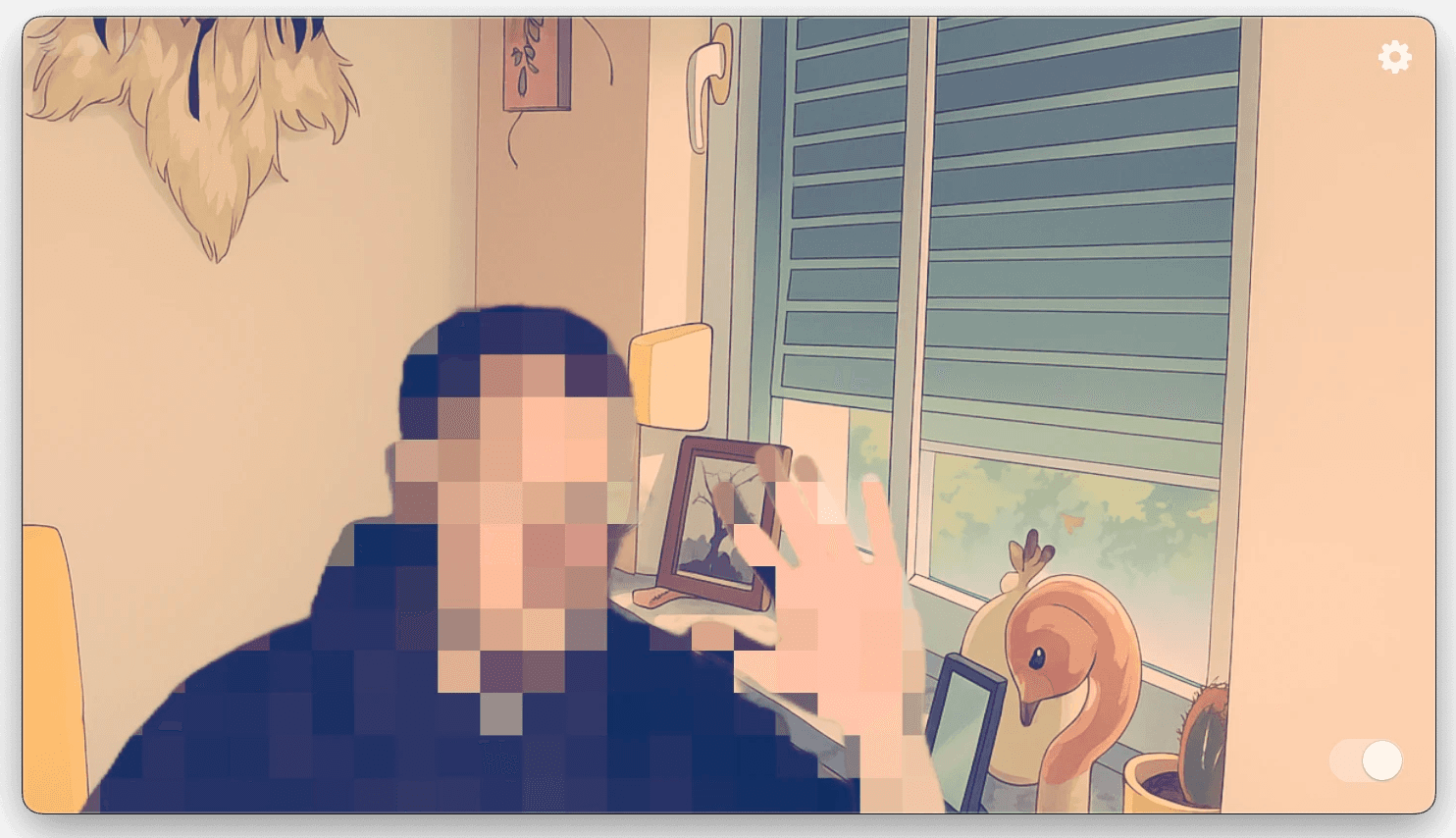
The image shows a Xamera pixelation effect. It is not a guarantee that every person or identifying detail will be hidden in a live call.
To use Xamera on a compatible Mac, enable its camera extension, then select Xamera in your meeting app. Xamera requires Apple silicon and macOS 15.5 or later; the installation guide explains the setup. Review the meeting app's preview before other people join.
Frequently asked questions
Will Xamera always hide a family member who walks in?
No. Advanced Privacy can help when another person is detected, but no camera effect is a substitute for controlling the room and turning off the camera when needed.
Does background blur protect people behind me?
Not reliably. Blur can leave recognizable shapes or fail around movement. Keep shared spaces out of the frame where possible.
What if I must keep my camera on for work?
Move to a private angle or location, and tell the organizer if that is not possible. Avoid promising family members that software will prevent them from appearing or being heard.
If you want an additional camera privacy control, review Xamera's features and limitations before your next call.
If you liked this tutorial, check out Xamera Camera for macOS.