How to Use Camera Filters in Google Meet on Safari
· Updated
Quick answer: Google Meet supports backgrounds and visual effects in Safari 16.4 or later. In the preview before a call, click Backgrounds and effects beneath your video. During a call, open Video settings → Backgrounds and effects. Choose a background, filter, or available appearance option. You do not need another app for these built-in effects.
Use Google Meet's built-in effects in Safari
- Update Safari and open your meeting at meet.google.com. Allow Safari to use your camera when prompted.
- Before joining, click Backgrounds and effects at the bottom right of your video preview. For a quick blur, use the Blur button there instead.
- Choose a background, filter, or appearance effect that is available to your account, then check the preview.
- During a meeting, click Video settings beside the microphone button, open Backgrounds and effects, and choose the Backgrounds, Filters, or Appearance tab.
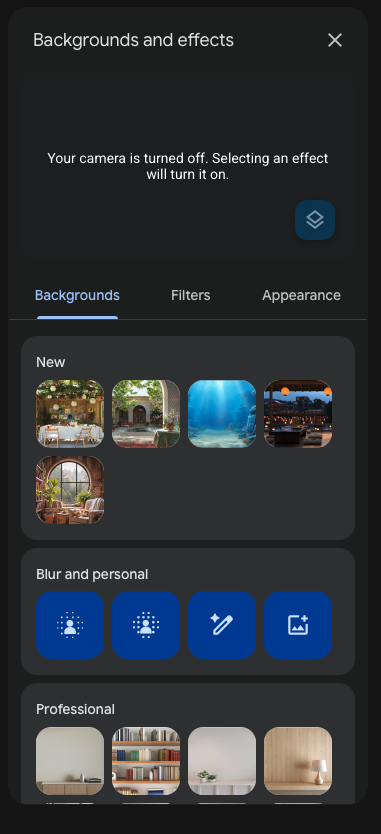
These steps follow Google's current Meet effects guide. Google's Portrait touch-up, Studio makeup, and some other appearance options are limited to certain accounts or Workspace editions. The effects you see can also depend on your device and administrator settings.
If Backgrounds and effects is missing or unavailable
- Confirm that Safari is version 16.4 or later. Google lists that as the minimum Safari version for computer visual effects.
- Check that your Mac can run the effect. Google calls for graphics acceleration and a browser with working WebGL support; some effects need more capable hardware.
- If this is a work or school account, ask your administrator whether Meet effects are enabled. Some touch-up features require an eligible edition.
- Make sure Safari has camera permission in System Settings → Privacy & Security → Camera, then reload Meet and check its camera preview.
If you only want background blur, macOS Portrait mode in Google Meet on Safari is another option on supported Mac and camera combinations. It uses Apple's Video menu rather than Meet's effects panel.
When to use Xamera instead
Meet's built-in controls are the simplest starting point. Choose Xamera when you want separate beauty controls, full-frame color looks, background effects, or privacy tools that work as a selectable Mac camera feed. Configure the look in Xamera, then select Xamera from Meet's camera selector before joining or during the call.
The comparison above shows Xamera's Face Studio, not a Google Meet effect. Face Studio's beauty controls let you adjust skin, teeth, face shape, eyes, nose, and lips separately. Xamera requires an Apple-silicon Mac running macOS 15.5 or later, its camera extension must be enabled, and the finished feed should be checked in Meet before an important call. Xamera's filters do not change Meet's eligibility rules for its own effects.
If those controls are what you need, check Xamera's full feature list and try it in your Meet preview before the call.

Frequently asked questions
Does Safari support Google Meet filters?
Yes. Google lists Safari 16.4 and later for Meet visual effects on a computer. Individual effects still depend on your device, account, and administrator settings.
Do I need Chrome to blur my background in Google Meet?
No. Try Meet's Blur control in a supported Safari version. On supported Macs and cameras, you can also use Apple's Portrait mode from the macOS Video menu.
Can I use Xamera beauty filters with Google Meet in Safari?
Yes, on a compatible Mac after Xamera's camera extension is set up. Choose Xamera in Meet, adjust Face Studio in Xamera, and check the final Meet preview.
If you liked this tutorial, check out Xamera Camera for macOS.