Xamera Camera Installation Guide for macOS
Mar 1, 2026
Installing Xamera Camera on your Mac is straightforward. This guide walks through the full setup so you can start using Xamera camera filters and privacy features in FaceTime, Google Meet, Zoom, Microsoft Teams, and other meeting apps.
1. Download Xamera from the Mac App Store
Open the Xamera Camera App Store page, download the app, and launch it from your Applications folder or Launchpad.
If this is your first time opening the app, keep Xamera running while you complete the initial setup.
2. Allow camera access when macOS asks
The first time you use Xamera, macOS may ask for permission to access your camera. Approve the request so Xamera can read your camera feed and apply filters before sending it to your meeting app.
If you accidentally denied access, you can re-enable it later in your Mac privacy settings and then reopen Xamera.
3. Choose the camera you want to use
Inside Xamera, select the camera source you want to use for calls. This can be your built-in Mac camera or a connected external camera.
Once your camera is active, confirm that the preview looks correct before moving on.
4. Pick your look
Xamera is designed to keep your video style consistent across apps and browsers. Before joining a call, choose the effect that fits how you want to appear.
Some of the available options include:
- adjustable background blur
- black and white blur
- image as background
- color as background
- fullscreen camera filters
You can also use Xamera's advanced privacy behavior to hide your camera when you are not the only person in view.
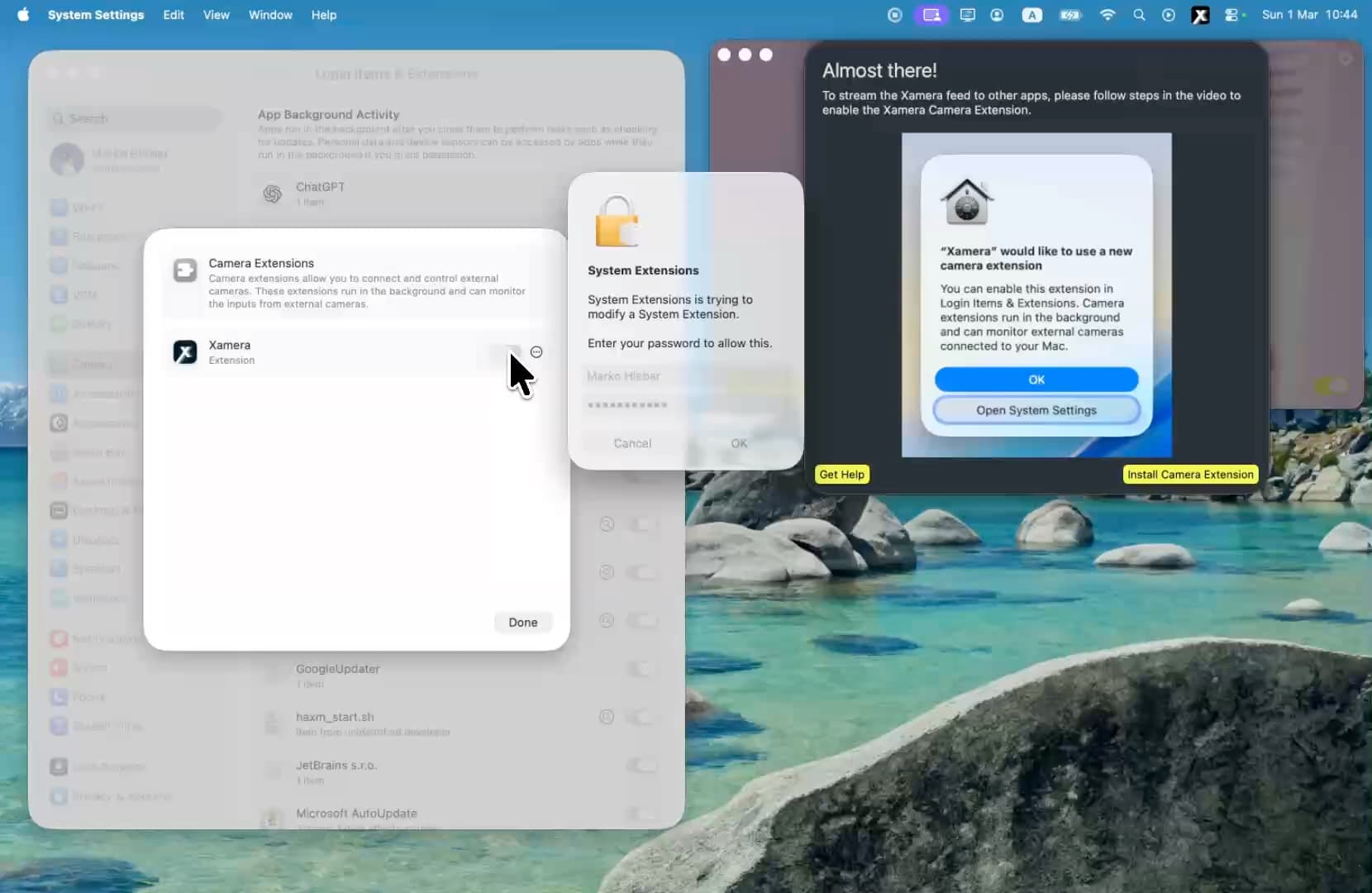
5. Installing Xamera Extension
After pressing Continue Setup and successfully starting your free trial, you will be prompted to install the Xamera Extension. This is an important step, because without it, applying filters in other meeting apps will not work.
If for some reason you don't see the popup after pressing Install Camera Extension, then you can manually navigate to this section.
System Settings > Login Items and Extension -> Xamera -> (i)
6. Test before your next meeting
Join a test call or open your meeting app's preview screen and make sure the correct camera is selected. If the picture does not look right, return to Xamera, adjust the filter, and check again.
For the smoothest experience, keep Xamera open while you use it as your camera source.
Troubleshooting
If you do not see Xamera Camera in your video app:
- make sure Xamera is open
- close and reopen the meeting app
- confirm your Mac camera permission is enabled for Xamera
- reselect the camera input inside the meeting app
If another camera is selected automatically, switch it back to Xamera Camera before starting the call.
Why use Xamera?
Built-in camera effects can vary from app to app. Xamera Camera gives you one consistent setup for video meetings across the tools you already use, with an emphasis on style and privacy.
If you want camera filters that stay consistent across your Mac workflow, install Xamera Camera and set it once before your next call.
If you liked this tutorial, check out Xamera Camera for macOS.