Continuity Camera: How to Use Your iPhone as a Mac Webcam
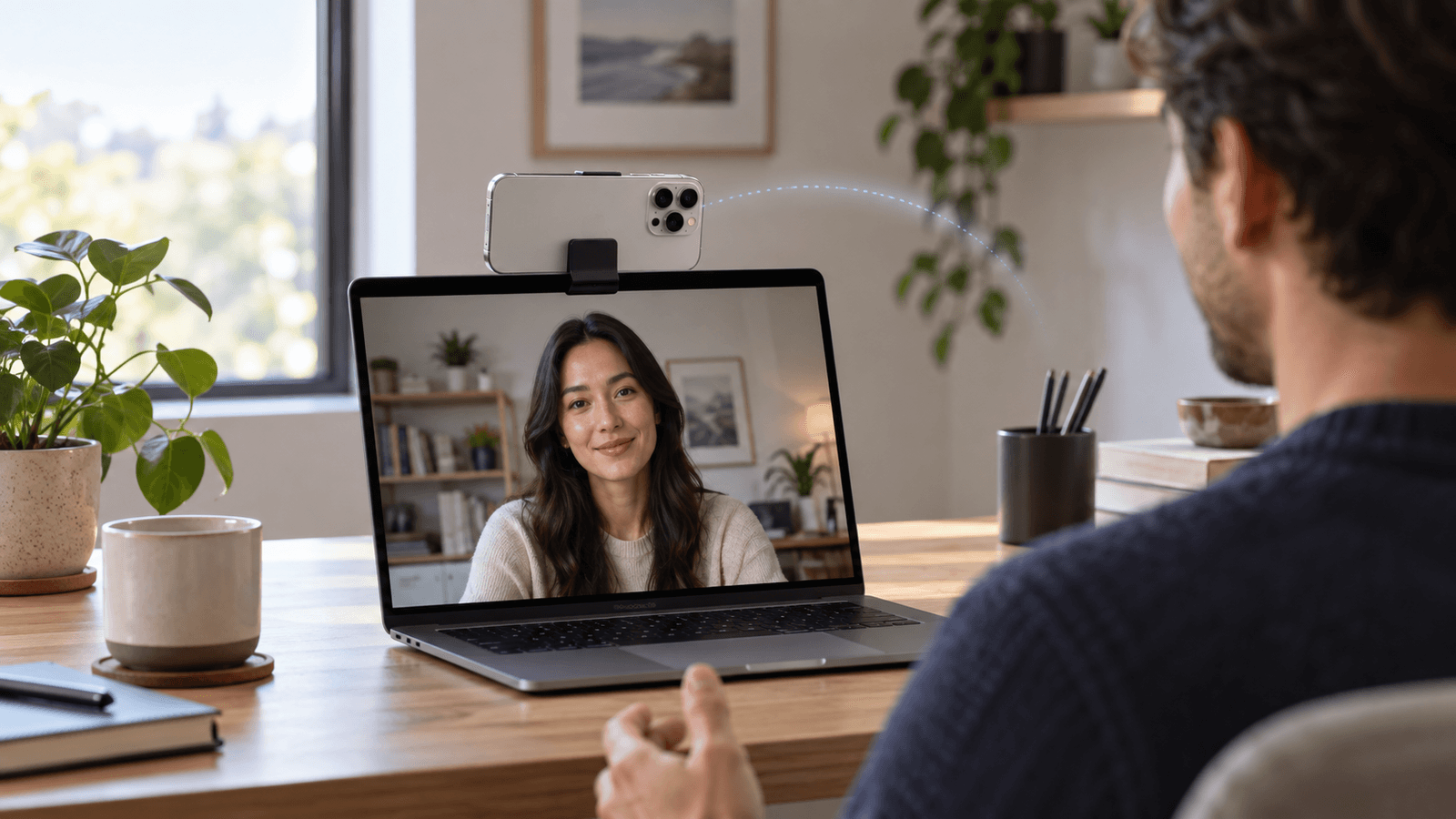
Quick answer: Continuity Camera lets your Mac use an iPhone's rear camera as its webcam. You need an iPhone XR or later on iOS 16 or later and a Mac on macOS Ventura 13 or later. Both must be signed in to the same Apple Account with two-factor authentication, with Wi-Fi and Bluetooth turned on. Mount the iPhone near your Mac, locked, stable, and with its rear cameras facing you. Then choose the iPhone in FaceTime's Video menu or in your meeting app's camera settings.
What you need
According to Apple's Continuity Camera guide:
- iPhone: iPhone XR or later running iOS 16 or later.
- Mac: any Mac that runs macOS Ventura 13 or later.
- Same Apple Account on both devices, with two-factor authentication.
- Wi-Fi and Bluetooth turned on for both devices, with the devices near each other.
- No internet sharing: the iPhone can't be sharing its cellular connection, and the Mac can't be sharing its internet connection.
- Wireless use: the Mac can't be using AirPlay or Sidecar.
How to set up Continuity Camera
- On your iPhone, open Settings → General → AirPlay & Continuity and make sure Continuity Camera is on. It's on by default.
- Check that both devices use the same Apple Account and have Wi-Fi and Bluetooth turned on.
- Mount the iPhone near your Mac. Apple says it should be locked, stable, and positioned with its rear cameras facing you and unobstructed.
- Hold it in landscape orientation if you want apps to switch to the iPhone automatically. Portrait orientation also works.
- Open your video app and choose the iPhone as the camera.
You can also connect the iPhone to your Mac with a USB cable. You may need to enter your iPhone passcode or allow the accessory to connect. Apple recommends a cable if you need to charge the iPhone while you use it as a webcam.
Choose your iPhone camera in FaceTime, Zoom, or Google Meet
- FaceTime: during a call, click the Video button in the menu bar, then choose your iPhone from the camera list at the top.
- Zoom, Google Meet, Microsoft Teams, and other apps: open the app's video or device settings and pick your iPhone from the camera list. The exact location varies by app.
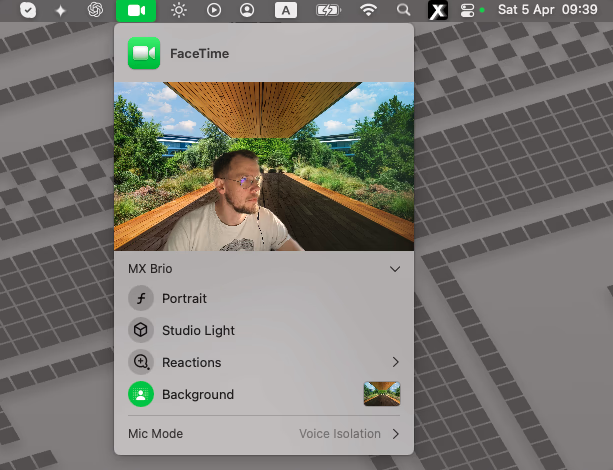
Video effects Continuity Camera unlocks
An iPhone can give an older or desktop Mac access to video effects that its own camera doesn't support. Apple's video-effects guide lists these Continuity Camera requirements:
- Portrait background blur: iPhone XR or later.
- Studio Light: iPhone 12 or later, with macOS Ventura 13 or later.
- Reactions: iPhone 12 or later, with macOS Sonoma 14 or later.
- Background replacement: iOS 18 or later, with macOS Sequoia 15 or later.
- Manual framing (zoom and pan): iPhone XR or later, with macOS Sonoma 14 or later.
The Video menu also offers Center Stage and Desk View on supported iPhones. Desk View shows your face and a top-down view of your desk at the same time.
If Continuity Camera isn't working
Work through these in order. Most of them come from Apple's own troubleshooting list.
- Check the requirements. Confirm the iPhone model, iOS version, macOS version, and that both devices use the same Apple Account with two-factor authentication.
- Check the connection. Turn Wi-Fi and Bluetooth on for both devices, and keep them close together. Turn off Personal Hotspot on the iPhone and internet sharing on the Mac.
- Stop AirPlay and Sidecar on the Mac if you're connecting wirelessly.
- Mount the iPhone properly. Keep it locked, stable, in landscape orientation, with the rear cameras unobstructed.
- Update everything. Install the latest macOS, iOS, and video-app updates.
- Unlock, then lock the iPhone again after restarting it.
- Plug the iPhone into your Mac with a USB cable, and trust the Mac if asked.
- Restart the iPhone and the Mac.
- Check app permission. Open System Settings → Privacy & Security → Camera on the Mac and allow the video app to use the camera.
If the iPhone appears in FaceTime but not in another app, the problem is usually that app's camera settings or permission, not Continuity Camera itself.
Add filters or beauty controls to your iPhone camera
Continuity Camera gives you a sharper image, but Apple's effects stop at blur, lighting, framing, and backgrounds. To add beauty filters or color looks, choose the iPhone as the input camera in Xamera. Then apply Face Studio beauty controls, a camera look, or a background effect, and select Xamera Camera in FaceTime or your meeting app. Xamera requires an Apple-silicon Mac running macOS 15.5 or later.

Don't turn on the same kind of effect twice. For example, using Apple's Portrait blur and Xamera's background blur together can leave uneven edges.
Limitations
- Wireless Continuity Camera depends on the devices staying close together with Wi-Fi and Bluetooth on. A USB cable is more predictable for long calls.
- It uses the iPhone's rear cameras, so you can't see the iPhone screen while it's mounted.
- Some effects need a newer iPhone or macOS version than Continuity Camera itself, as listed above.
- Apps that don't let you choose a camera may not use the iPhone unless it's selected automatically.
Frequently asked questions
Does Continuity Camera work with Zoom, Google Meet, and Microsoft Teams?
Yes. Apple makes the iPhone camera available to apps on the Mac, so any app with a camera picker can use it. Choose the iPhone in that app's video or device settings.
Can I use Continuity Camera with a cable?
Yes. Connect the iPhone to your Mac with a USB cable. You may be asked to enter your passcode or allow the accessory to connect.
Which iPhones work with Continuity Camera?
iPhone XR or later running iOS 16 or later. Some video effects need an iPhone 12 or later, or iOS 18 or later.
Why does my Mac keep switching to my iPhone camera?
Apple designed Continuity Camera so apps can pick the iPhone automatically when it's mounted in landscape orientation near the Mac. To stop that, move the iPhone away or turn off Continuity Camera in Settings → General → AirPlay & Continuity on the iPhone.
Is using an iPhone as a webcam better than the Mac's built-in camera?
Usually, yes. The iPhone's rear camera is typically sharper than a laptop webcam and unlocks video effects that some Macs don't support. The trade-offs are setup, mounting, and a wireless link that can drop if the devices move apart.
If you liked this tutorial, check out Xamera Camera for macOS.