Xamera Installation Guide for macOS
· Updated
Quick answer: Install Xamera on an Apple-silicon Mac running macOS 15.5 or later, allow camera access, and complete the in-app camera-extension setup. Then choose Xamera in FaceTime, Google Meet, Zoom, or another app with a camera picker. Check the destination app's preview before joining a call.
1. Check compatibility and install Xamera
The current Mac App Store listing requires macOS 15.5 or later and an Apple M1 chip or later. Download Xamera there and launch it from Applications or Launchpad.
If this is your first time opening the app, keep Xamera running while you complete the initial setup.
2. Allow camera access when macOS asks
The first time you use Xamera, macOS may ask for permission to access your camera. Approve the request so Xamera can read your camera feed and apply filters before sending it to your meeting app.
If you denied access, open System Settings → Privacy & Security → Camera, enable Xamera, and reopen it. Apple explains how to change camera permissions.
3. Choose the camera you want to use
Inside Xamera, select the source you want for calls: the built-in Mac camera, a connected external camera, or Continuity Camera with a supported iPhone.
Once your camera is active, confirm that the preview looks correct before moving on.
4. Enable the Xamera camera extension
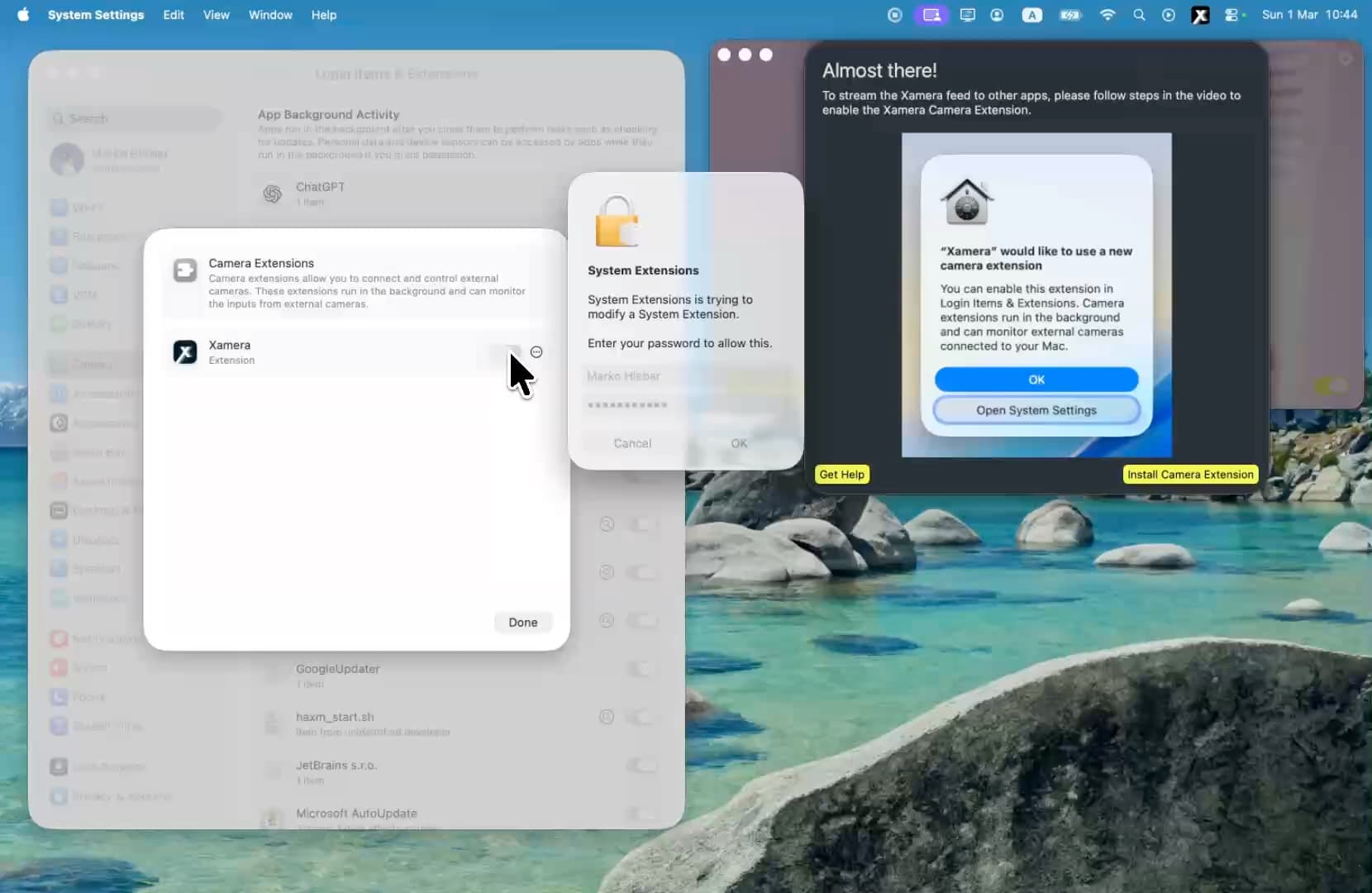
Follow Xamera's in-app setup until it offers Install Camera Extension. macOS may ask you to open System Settings and approve the extension. The app may also present a trial or purchase step; review the options shown for your account rather than assuming a trial is always required.
This step makes Xamera available as a selectable camera in compatible apps. The recording below shows the extension onboarding; button labels may differ in a newer Xamera release.
If the approval prompt does not appear, check System Settings → General → Login Items & Extensions → Camera Extensions for Xamera. Apple documents this settings area. The following recording shows the manual route in an earlier macOS layout.
5. Choose your look and test the destination app
In Xamera, select the effect you want: a full-frame camera filter, background blur or replacement, image adjustments, or Face Studio beauty controls. If you enable face tracking or a privacy effect, check the output while moving so you can spot artifacts or an unexpected uncovered frame.
Open your meeting app's camera settings and select Xamera. Join a test call or use its pre-join preview to confirm that the finished feed—not the built-in webcam—is selected.
If the picture does not look right, return to Xamera, adjust the effect, and check the meeting app's preview again. Keep Xamera open while you use its camera source.
Troubleshooting
If you do not see Xamera in your video app:
- confirm your Mac meets the current system requirements
- make sure Xamera is open and its camera extension is enabled in System Settings
- confirm camera permission is enabled for Xamera under Privacy & Security → Camera
- quit and reopen the meeting app, then check its camera picker again
- in a browser meeting, also check the website's camera permission and its own camera selector
If another camera is selected automatically, switch it back to Xamera before starting the call.
Frequently asked questions
Do I need to install the camera extension?
Yes, if you want to select Xamera in another app. Allowing Xamera to use your physical camera and enabling its output extension are separate setup steps.
Why does the extension not appear in my meeting app?
Check the extension in System Settings, keep Xamera open, then quit and reopen the meeting app. Some apps and websites need you to choose the camera again in their own settings.
Can I use the built-in camera or Continuity Camera as Xamera's input?
Yes. Xamera supports the built-in Mac camera, external cameras, and Continuity Camera. Confirm the selected input in Xamera before choosing its output in the calling app.
For more detail on the available effects, review Xamera's camera, beauty, and privacy features. If you have not installed it yet, get Xamera from the Mac App Store and return to step 1.
If you liked this tutorial, check out Xamera Camera for macOS.