How to Mirror or Flip Your Camera on a Mac
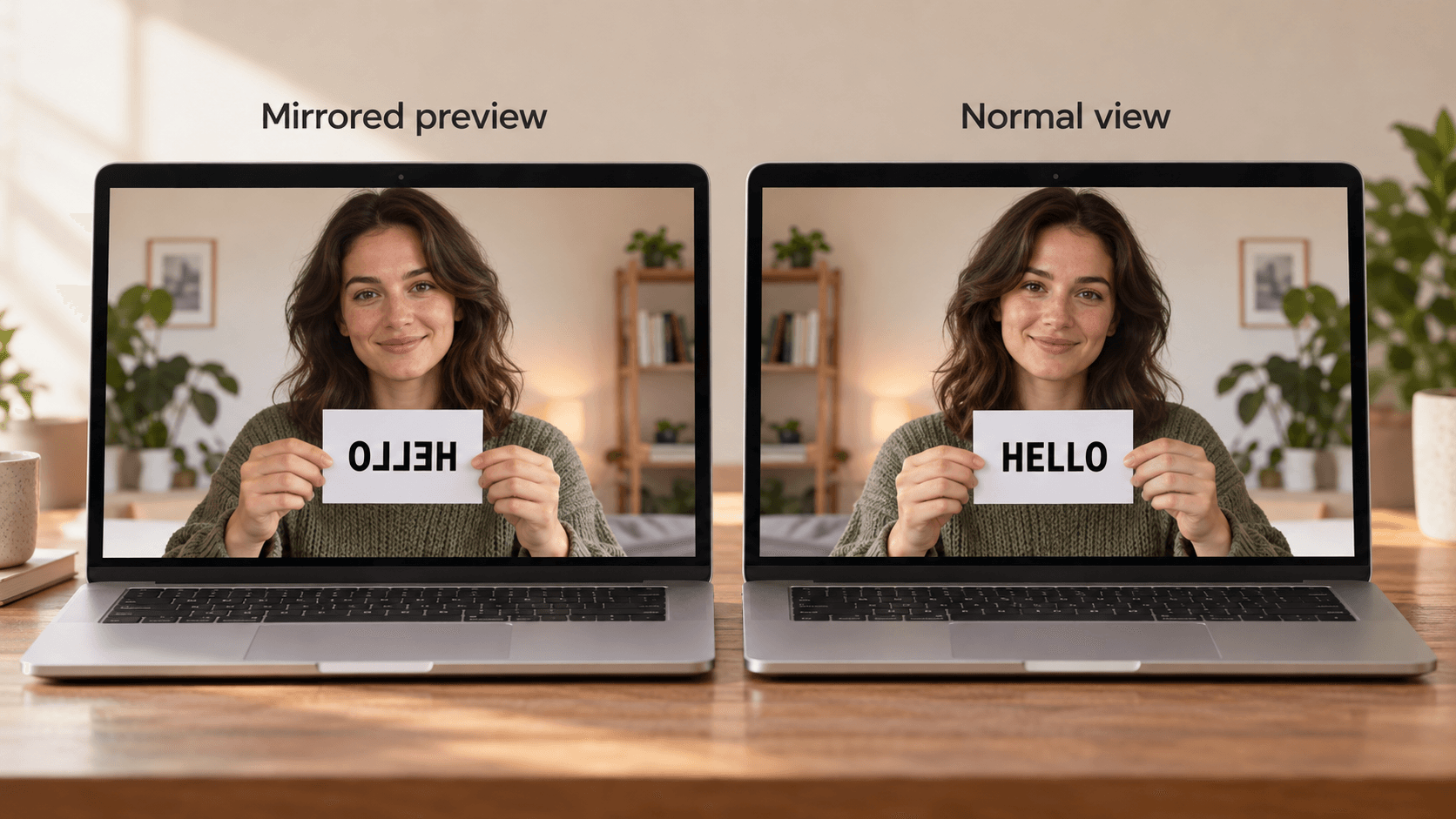
Quick answer: Video apps show your own preview like a mirror, but the people you're talking to usually see you the right way round. To change only your preview, use Mirror my video in Zoom (Settings → Video & effects) or Microsoft Teams. In Photo Booth, choose Edit → Flip Photo for a photo you've taken. macOS has no setting that flips the camera itself. To flip the picture everyone sees, for example when a camera is mounted upside down, use a camera app with flip controls.
Why your Mac camera looks mirrored
Most video apps show your self-view as a mirror image, because that's what you're used to seeing in a mirror. Raise your right hand and it appears on the right side of your preview. The other people in the call receive the camera's normal, unmirrored image. That's why text on your shirt looks backwards to you but reads correctly to them.
To check what others see, hold up a piece of paper with a word written on it and ask someone in the call whether they can read it.
Change the mirror setting in each app
- Zoom: open Settings → Video & effects and turn Mirror my video on or off. It only changes your own preview (Zoom's settings guide).
- Microsoft Teams: turn Mirror my video on or off in your video settings before or during a meeting. It also only changes your own preview.
- FaceTime and Google Meet: there's no mirror setting.
- Photo Booth: the preview is a mirror image. To flip a photo you've taken, select it and choose Edit → Flip Photo. To change how new photos are saved, choose Edit → Auto Flip New Items (Apple's Photo Booth guide). How to take a picture on a Mac covers the rest of Photo Booth.
Flip the picture everyone sees
Sometimes the problem isn't your preview. The camera itself sends a mirrored or upside-down picture, for example:
- an external camera mounted upside down;
- a camera or capture device that mirrors its output;
- a document camera or a second camera pointed at a whiteboard.
macOS has no system setting to flip or rotate the camera, and the mirror settings in Zoom and Teams don't change what others receive. Some external webcams can flip their output in the maker's app. See using an external webcam with a Mac for the main brands.
Otherwise, use a camera app that processes the picture before it reaches your video apps. On a Mac with Apple silicon, Xamera can flip the image horizontally or vertically. Choose Xamera as the camera in FaceTime, Zoom, Google Meet, Microsoft Teams, or Photo Booth, and every app receives the flipped picture.

Xamera also has Face Studio beauty filters and image controls for brightness, exposure, and color.
Frequently asked questions
How do I mirror my camera on a Mac?
There's no system setting. Your self-view in most video apps is already mirrored. In Zoom and Teams, use Mirror my video to turn your preview's mirroring on or off.
Do other people see me mirrored on Zoom?
No. Zoom's Mirror my video setting only changes your own preview. The other participants see the camera's normal image.
Why is my FaceTime camera mirrored?
FaceTime shows your own tile as a mirror image. The person you're calling sees you the right way round. FaceTime has no setting to change your preview.
How do I flip a photo in Photo Booth?
Select the photo and choose Edit → Flip Photo. To change how new photos are saved, use Edit → Auto Flip New Items.
How do I flip my camera upside down on a Mac?
macOS can't rotate the camera. Use the camera maker's app if it has a flip option, or a camera app such as Xamera that can flip the image vertically for every video app.
If you liked this tutorial, check out Xamera Camera for macOS.