How to Use an External Webcam With a Mac
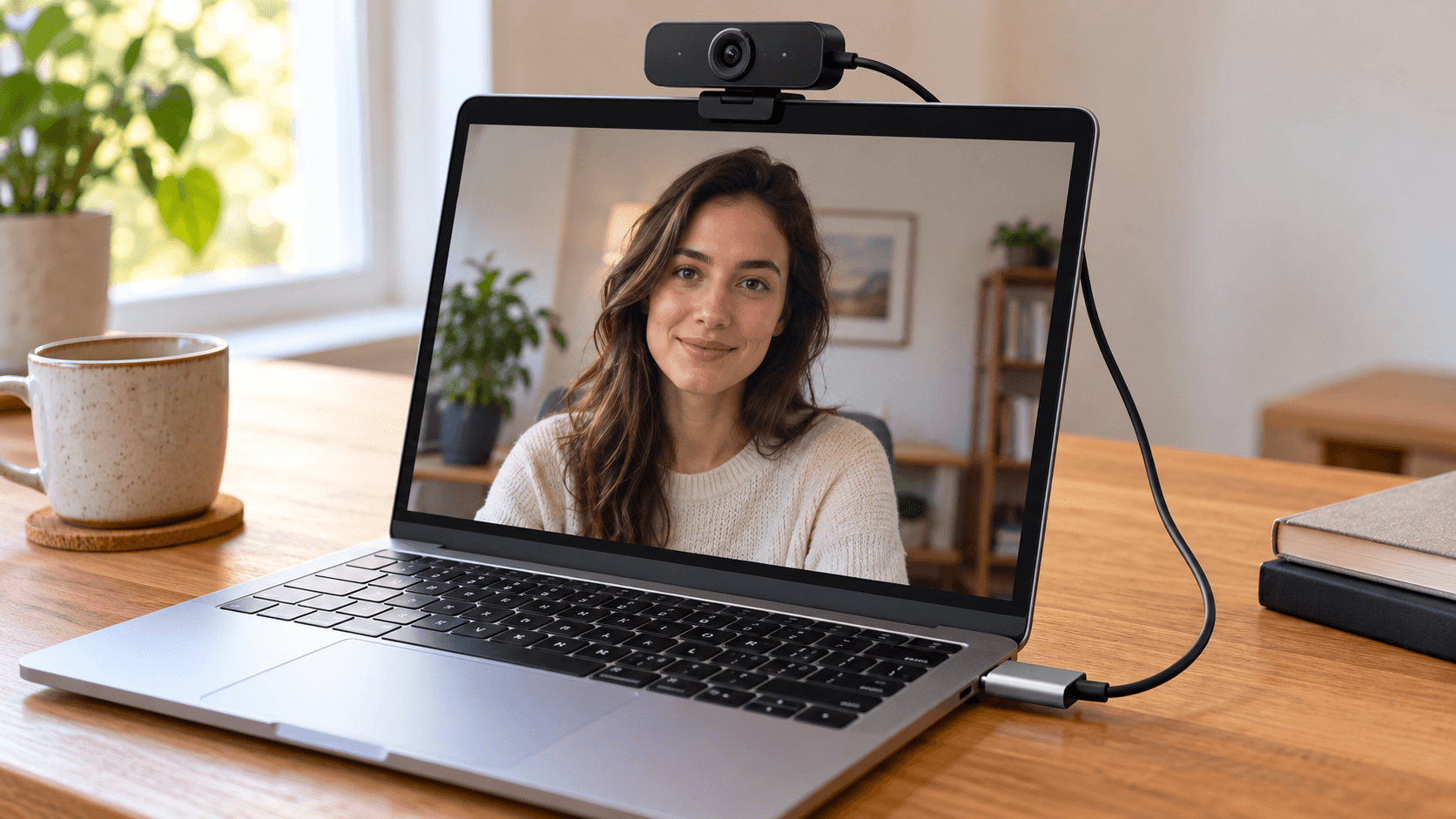
Quick answer: Plug the webcam into a USB port (use an adapter if your Mac only has USB-C). Most webcams work on a Mac without a driver. Then choose the webcam in each app: in FaceTime, click the Video menu in the menu bar; in Zoom, Meet, and Teams, use the camera list in their video settings. macOS has no system-wide default camera, so set it once in every app you use. To change brightness, zoom, or focus, install the webcam maker's app.
Connect the webcam
- Plug the webcam into a USB port on your Mac. If the webcam has a USB-A plug and your Mac only has USB-C, use a USB-C adapter.
- Connect it directly to the Mac if you can. Unpowered hubs are a common cause of webcams that drop out.
- Open Photo Booth to check the picture. Click Camera in the menu bar and choose the webcam.
Most webcams follow the standard USB video class, so macOS recognizes them without extra software.
Choose the webcam in each app
macOS doesn't have a default camera setting. Each app remembers its own choice:
- FaceTime: the Video menu in the menu bar, at the top.
- Photo Booth: Camera in the menu bar.
- QuickTime Player: File → New Movie Recording, then the menu next to the record button.
- Zoom: Settings → Video & effects → Camera.
- Google Meet: the camera picker under your preview, or Settings → Video → Camera.
- Microsoft Teams: the camera list in your device settings.
Adjust it with the maker's app
The webcam's own app controls things macOS doesn't, such as exposure, white balance, zoom, and field of view. The main brands have Mac apps:
- Logitech: Logi Tune, Logi Options+, or G HUB, depending on the model. See Logitech webcams on Mac.
- Elgato: Camera Hub supports Facecam models. Camera Hub 2.1 and later needs macOS 13.3 or later (Elgato's Camera Hub notes).
- Insta360: Insta360 Link Controller controls the Link webcams, including tracking and framing.
- OBSBOT: OBSBOT Center needs macOS 11 or later and comes in separate versions for Intel and Apple silicon Macs.
- Razer: Razer's Synapse software has had limited Mac support. Kiyo webcams work as standard webcams, but some settings may only be available on Windows.
Which Apple effects work with an external webcam
The Video menu in the menu bar appears for external cameras too (Apple's video effects guide):
- Edge Light: yes, on macOS Tahoe 26.2 or later on a Mac with Apple silicon.
- Reactions and Background: on a Mac with Apple silicon.
- Portrait and Studio Light: no. They need a Mac laptop's built-in camera or Continuity Camera.
- Center Stage: only with Apple's supported cameras, such as the Studio Display.
Add filters to an external webcam
Webcam apps adjust the image, but most don't add beauty filters or color looks. On a Mac with Apple silicon, Xamera works with external webcams up to 4K. Choose the webcam in Xamera, set up Face Studio beauty filters, a look, or a background effect, then choose Xamera as the camera in your video app.

If the Mac doesn't detect the webcam
- Try another port and cable, and skip the hub.
- Quit the webcam maker's app and other video apps, then reopen your video app.
- Allow your video app, or your browser for web meetings, in System Settings → Privacy & Security → Camera.
- Restart the Mac with the webcam connected.
Mac camera not working has the full checklist, and Continuity Camera covers using an iPhone as your webcam instead.
Frequently asked questions
How do I use an external webcam on my MacBook?
Plug it into a USB port, then choose it in each app's camera settings. In FaceTime, use the Video menu in the menu bar. Most webcams need no driver.
How do I make my Mac use the external webcam by default?
macOS has no default camera setting. Choose the webcam once in each app, and the app remembers it.
Why isn't my external webcam showing up on my Mac?
Usually it's the cable, port, or hub, or another app is using the camera. Connect it directly, quit other video apps, and check that your app is allowed in Privacy & Security → Camera.
Do I need drivers for a webcam on a Mac?
Most webcams don't need drivers on a Mac. The maker's app is only for changing settings such as zoom, exposure, or field of view.
Is an external webcam better than the MacBook camera?
Often, yes, especially compared with 720p and 1080p MacBook cameras. Your iPhone with Continuity Camera is another option that needs no extra hardware. See how to improve your MacBook camera quality.
If you liked this tutorial, check out Xamera Camera for macOS.