How to Stream More Privately With a Virtual Camera
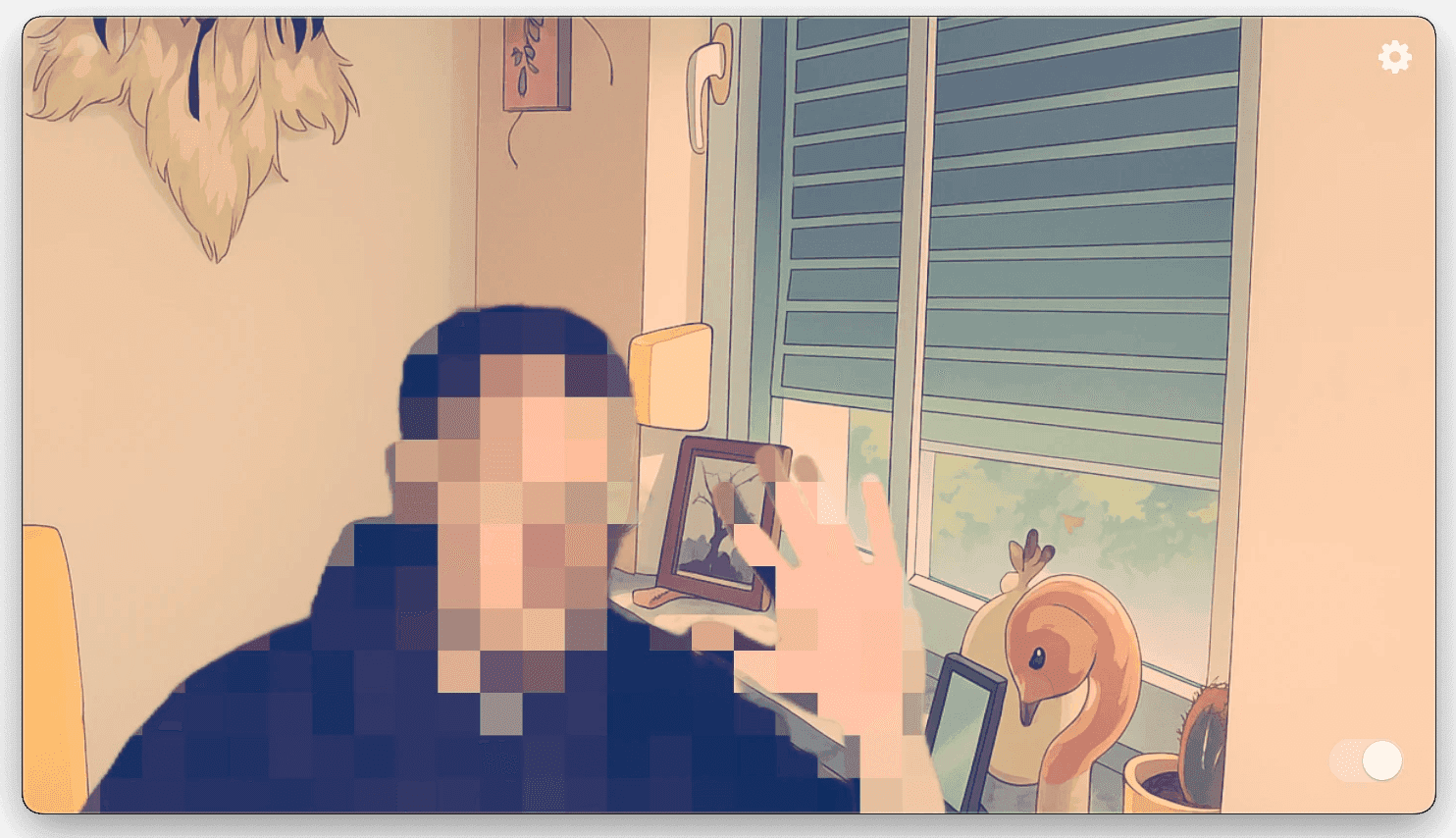
Quick answer: A virtual camera can blur or pixelate your face and obscure your room before video reaches your streaming app. It cannot make a stream anonymous by itself. Your voice, screen, account name, notifications, and people entering the frame can still reveal information. Make a private test recording and inspect the final stream output before going live.
Decide what you need to hide
- Your face: Use face blur or pixelation if you do not want viewers to see facial details. Check the effect while turning your head, moving closer to the camera, and leaving and returning to the frame.
- Your room: Remove identifying objects, or use background blur or replacement. Look for gaps around hair, hands, and moving objects in the final output.
- Your voice: Camera effects do not alter microphone audio. Mute it if you do not need to speak, or use a separate audio tool after testing it.
- Your screen and account: Hide notifications, close personal tabs and files, and check the account name and profile image that viewers will see. A virtual camera does not cover a screen-capture source.
If exposing your identity would put you at risk, the safer choice is not to show a live camera feed. No visual effect is a guarantee of anonymity.
Set up a more private camera feed on Mac
- Open your virtual-camera app and choose the physical camera you intend to use. In Xamera, you can apply face blur or pixelation and blur or replace the background. These are separate choices: hiding the room does not hide your face.
- Check the effect in the virtual-camera app. Move around and look for brief unfiltered areas or objects that remain visible.
- In your streaming or recording software, select the virtual camera instead of your built-in webcam. For example, OBS documents adding a webcam as a Video Capture Source; choose Xamera as that source if you use Xamera with OBS.
- Record a short private test with the same scene, microphone, screen sources, and overlays you will use live. Play back the recording rather than relying only on the camera preview.
- Keep the virtual-camera app running, and have a manual way to stop the camera or stream if something unexpected appears.
Xamera requires an Apple-silicon Mac running macOS 15.5 or later. Its camera extension must be enabled before Xamera appears in another app; see the installation guide. Its effects are processed locally on your Mac, but your streaming service still receives whatever video and audio you choose to broadcast.
What a virtual camera cannot protect
Face blur and pixelation can fail to cover every frame or reveal identifying features such as clothing, tattoos, or surroundings. Background effects can leave edges or briefly expose parts of a room. Automatic privacy behavior is an extra safeguard, not a substitute for checking the feed or stopping it yourself.
Do not assume Xamera supplies animated character masks, an avatar identity, or voice modulation: those are not among the features described in Xamera's current feature list. Use separate tools if you need them, and test the full setup together. Also get permission before showing other people: Twitch's community guidelines prohibit sharing another person's private information or broadcasting from a private space without consent.
Frequently asked questions
Can a virtual camera make me anonymous on a stream?
No. It can change the camera image, but it does not hide your voice, account identity, screen capture, or all visual clues. Test the entire stream output and avoid a live camera if the risk of identification is unacceptable.
Can I use Xamera with OBS on Mac?
Yes, on a compatible Mac after enabling Xamera's camera extension. Add a Video Capture Source in OBS and select Xamera, then check OBS's final scene and a test recording.
Does background blur hide my face?
No. Background blur affects the area behind you. Use a face effect if you need to obscure your face, and inspect the result as you move.
If face blur, pixelation, or background replacement fits your setup, explore Xamera's camera and privacy features. Start with a private test before using them in a live stream.
If you liked this tutorial, check out Xamera Camera for macOS.