How to Blur Your Background in Google Meet
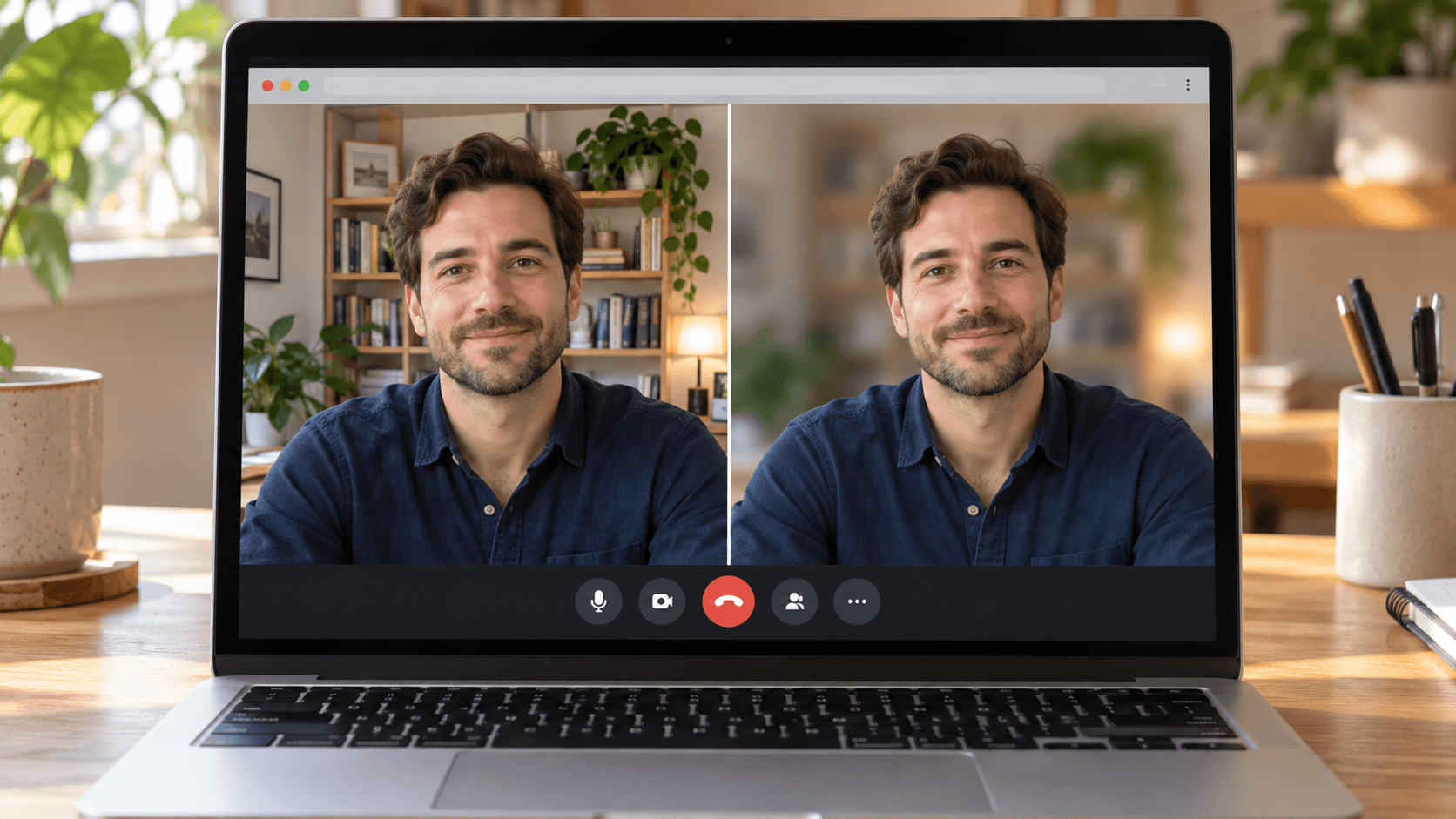
Quick answer: Before you join, click the Blur button at the bottom right of your self view. During a meeting, click Video settings next to the microphone button at the bottom and choose Blur background. For a lighter effect, open Backgrounds and effects and choose Slightly blur your background. Blur needs Chrome or Edge 114 or later, Firefox 110 or later, or Safari 16.4 or later on a Mac, with graphics acceleration turned on.
Blur your background before joining
- Open the meeting link. Google Meet shows your camera preview before you join.
- Click Blur at the bottom right of your self view.
- Check the preview, then click Join now.
To choose between light and full blur, click Backgrounds and effects under the preview instead.
Blur your background during a meeting
- At the bottom of the meeting, next to the microphone button, click Video settings.
- Click Blur background for one-click blur.
- For more choices, open Backgrounds and effects. Under Blur and personal backgrounds, choose Slightly blur your background or Blur your background.
To turn blur off, open the same panel and choose no background effect. These steps follow Google's backgrounds and effects guide.
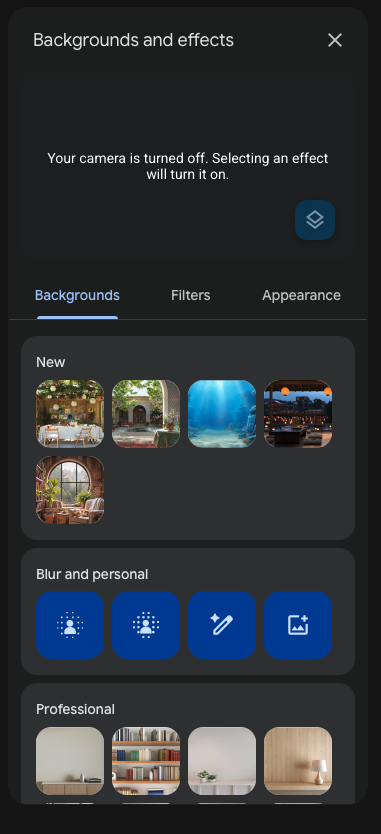
Why the blur option is missing
- Your browser is too old. Google lists Chrome 114, Edge 114, Firefox 110, and Safari 16.4 (Mac only) as the minimum versions. Update your browser and reload Meet.
- Graphics acceleration is off. Meet's effects use WebGL. In Chrome, open Settings → System and turn on Use graphics acceleration when available, then restart Chrome.
- Your organization turned it off. Workspace admins decide whether users can apply backgrounds. If the option is missing on a work or school account, ask your admin.
- The camera is off. Turn on your camera first. Effects apply to the live video.
Use your Mac's Portrait blur instead
macOS has its own background blur that works in Google Meet in any browser. While Meet is using the camera, click the Video menu (the green camera icon) in the menu bar and choose Portrait. Click the arrow next to it and drag the slider to change how strong the blur is.
Portrait needs a Mac laptop with Apple silicon using its built-in camera, or Continuity Camera with an iPhone XR or later (Apple's video effects guide). If you use it, turn off Meet's blur so the edges aren't processed twice. Portrait mode in Google Meet covers the details.
Blur plus beauty filters with Xamera
Meet's blur only changes the background. On a Mac with Apple silicon, Xamera can blur or replace the background and also apply Face Studio beauty filters with separate controls for skin, teeth, face shape, eyes, nose, and lips. In Meet, choose Xamera in the camera picker or under Settings → Video → Camera. Use one background effect at a time: turn off Meet's blur if Xamera is blurring the background.

Frequently asked questions
How do I blur my background in Google Meet?
Before joining, click Blur at the bottom right of your self view. During a meeting, click Video settings next to the microphone and choose Blur background.
Why can't I blur my background in Google Meet?
Update your browser, turn on graphics acceleration, and make sure your camera is on. On a work or school account, your admin may have turned background effects off.
Can I make the Google Meet blur stronger?
Meet has two levels: Slightly blur your background and Blur your background. For an adjustable blur on a Mac, use Portrait in the Video menu in the menu bar.
Does Google Meet background blur work in Safari?
Yes, in Safari 16.4 or later on a Mac. Google Meet filters in Safari has Safari-specific checks.
Can I blur my background in the Google Meet app on iPhone?
Yes. Google has separate steps for the mobile app in its backgrounds guide for iPhone and iPad.
If you liked this tutorial, check out Xamera Camera for macOS.