Where Is the Camera App on a Mac? How to Open and Use Your Camera
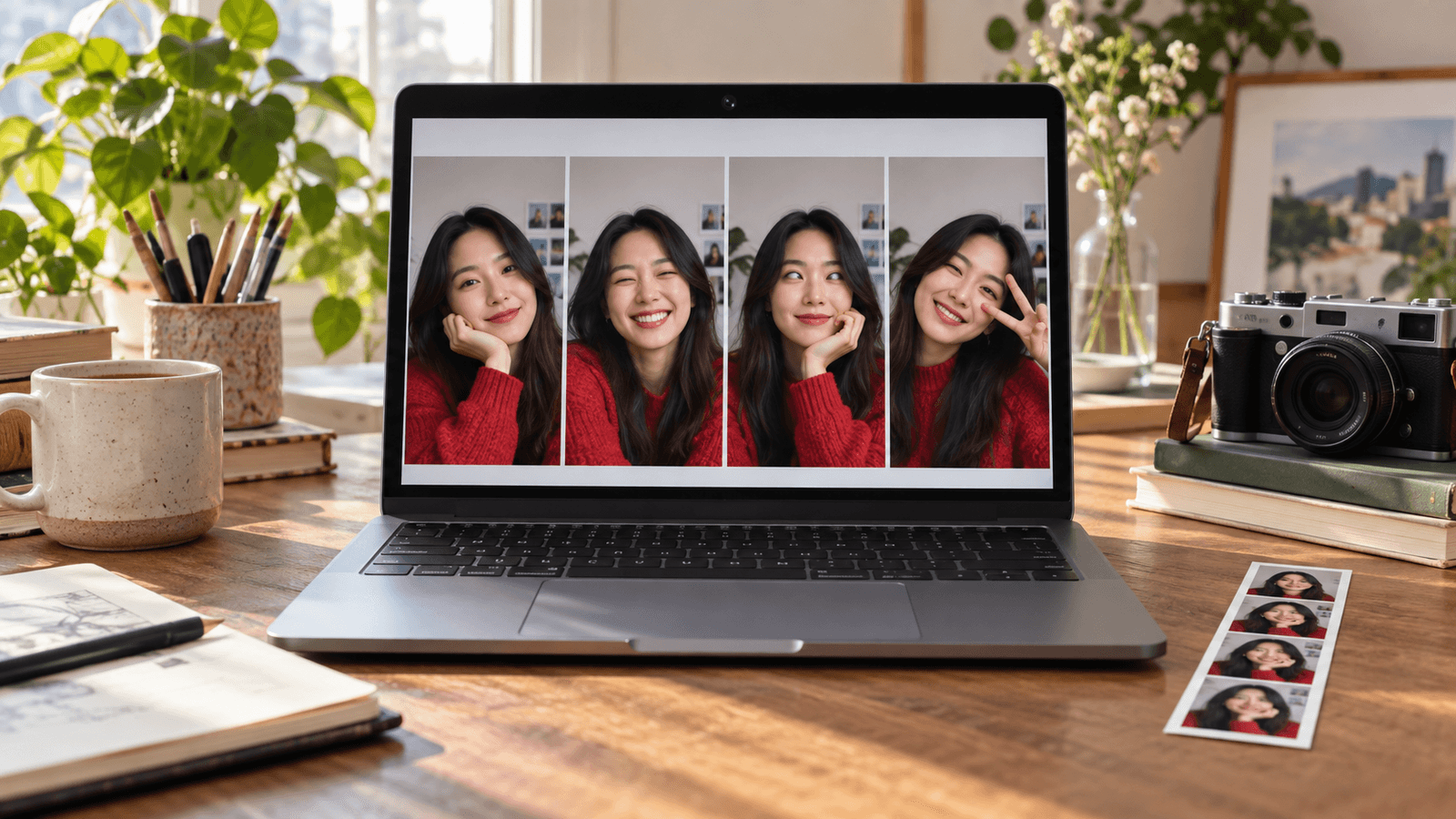
Quick answer: There is no app called Camera on a Mac. Photo Booth is Apple's built-in camera app for taking photos and recording video. FaceTime shows a live camera preview, and QuickTime Player records video with File → New Movie Recording. Open any of them with Spotlight (Command-Space). The green light next to the camera turns on while it's in use.
Photo Booth: the built-in camera app
Photo Booth is in your Applications folder on every Mac.
- Open Photo Booth. The camera turns on and you see a live preview.
- Click Take Photo, or switch to video with the buttons at the bottom left and click Record Video.
- Click Effects at the bottom right to try Photo Booth's effects, such as distortions and backdrops (Apple's Photo Booth effects guide).
- To use a different camera, click Camera in the menu bar and choose one (Apple's guide to choosing a camera).
Photo Booth's effects only apply inside Photo Booth. They don't carry over to FaceTime, Zoom, or other apps.
Other ways to open the camera
- FaceTime: open it to see a live preview before making a call.
- QuickTime Player: choose File → New Movie Recording, pick a camera from the menu next to the record button, and click record (Apple's QuickTime recording guide).
- Video-call apps: Zoom, Google Meet, Microsoft Teams, and others show a preview in their video settings.
You can also use your iPhone as the camera with Continuity Camera. It appears in the same camera menus.
Add filters to your Mac camera
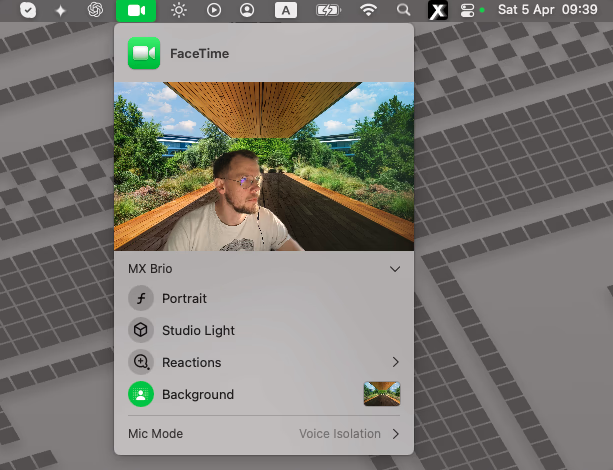
For video calls, the Video menu in the Mac menu bar offers Portrait blur, Studio Light, Edge Light, Center Stage, and backgrounds on supported Macs, in any app that uses the camera. Mac camera settings explains each one.
For beauty filters and color looks that work in every app, use a camera app that creates its own camera. Xamera processes your built-in or external camera and appears as Xamera in camera lists. Pick it in FaceTime, Zoom, Google Meet, Microsoft Teams, or OBS. Its Face Studio has separate controls for skin, teeth, face shape, eyes, nose, and lips. Xamera requires an Apple-silicon Mac running macOS 15.5 or later.

If the camera won't open
- Another app is using it: quit other video apps and try again.
- An app shows a black preview: allow it in System Settings → Privacy & Security → Camera. Photo Booth and FaceTime have access automatically.
- Nothing works: follow Apple's built-in camera troubleshooting guide.
Frequently asked questions
Is there a Camera app on a Mac?
Not by that name. Photo Booth is the Mac's built-in camera app. FaceTime and QuickTime Player can also use the camera.
How do I take a picture with my Mac camera?
Open Photo Booth and click Take Photo. Photos are saved in Photo Booth, and you can export them from there.
How do I record a video with my Mac camera?
In Photo Booth, switch to video and click Record Video. Or use QuickTime Player: choose File → New Movie Recording and click the record button.
How do I turn on the camera on my MacBook?
There is no separate switch. The camera turns on when an app uses it, and the green light next to it shows that it's on.
Can I add filters to my Mac camera?
Photo Booth has effects for its own photos and videos. For video calls, use the macOS Video menu effects, or a camera app like Xamera that adds beauty filters and color looks in every app.
If you liked this tutorial, check out Xamera Camera for macOS.