Mac Camera Settings: What You Can Adjust and Where to Find It
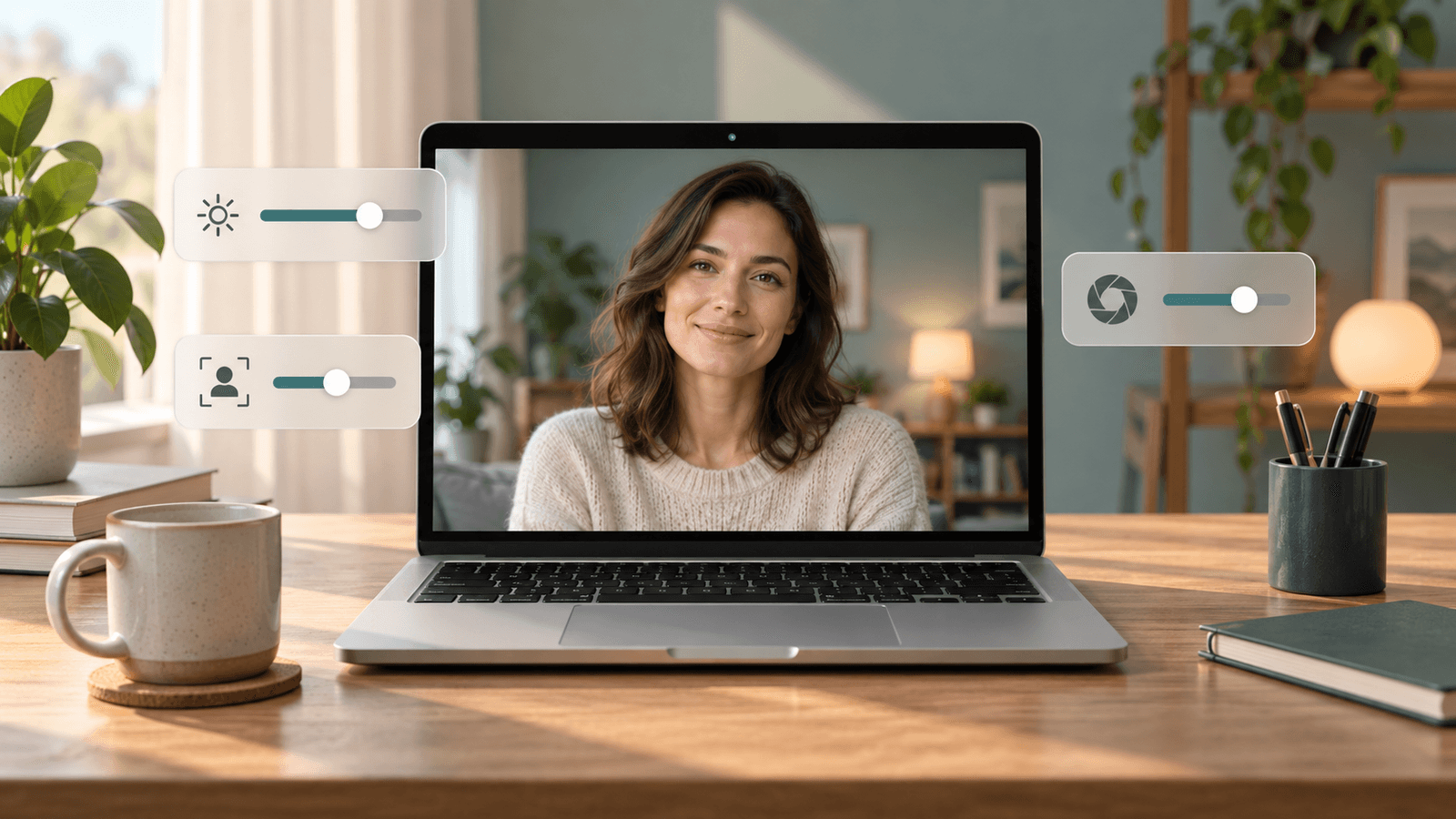
Quick answer: macOS doesn't have one Camera panel, and it has no brightness, exposure, or white-balance controls for the built-in camera. Camera settings are split across three places. App access is in System Settings → Privacy & Security → Camera. Effects such as Portrait, Studio Light, and Center Stage are in the Video menu in the menu bar while an app is using the camera. Resolution and touch-up options are in each video app's settings. For manual image controls, use an external webcam's own software or a camera app such as Xamera.
Where each Mac camera setting lives
- Which apps can use the camera: System Settings → Privacy & Security → Camera.
- Blur, lighting, framing, reactions, and backgrounds: the Video menu in the menu bar, while an app is using the camera.
- Which camera an app uses: FaceTime's Video menu, or the camera list in each app's video settings.
- Camera access for websites in Safari: Safari → Settings → Websites → Camera.
- Resolution, HD video, and touch-up: each video app's own settings.
- Brightness, exposure, contrast, and white balance: not available in macOS for the built-in camera. The brightness section below lists your options.
Open the Video menu
The Video menu is the closest thing macOS has to camera settings. It only appears while an app is actively using the camera.
- Open FaceTime or Photo Booth, or join a call in another video app. The green light next to the camera turns on.
- Click the Video button (a green camera icon) in the menu bar.
- Choose the camera at the top of the menu, then turn effects on or off.
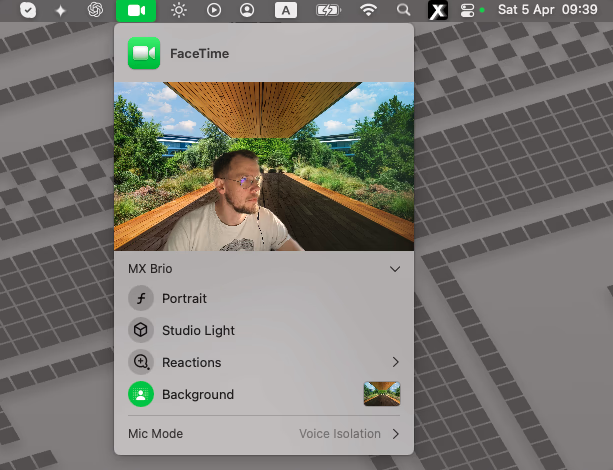
Apple's video-effects guide lists what each effect needs:
- Portrait blurs the background. It needs a Mac laptop with Apple silicon using its built-in camera, or Continuity Camera with iPhone XR or later.
- Studio Light dims the background and brightens your face. It needs macOS Sonoma 14 or later on a Mac laptop with Apple silicon, or Continuity Camera with iPhone 12 or later.
- Edge Light lights the edges of your display like a soft fill light. It needs macOS Tahoe 26.2 or later on a Mac with Apple silicon. It can turn on automatically in low light on Macs introduced in 2024 or later (Apple's Edge Light guide).
- Center Stage keeps you centered in the frame as you move, on supported cameras.
- Reactions add animated effects with hand gestures. They need macOS Sonoma 14 or later on a Mac with Apple silicon, or Continuity Camera with iPhone 12 or later.
- Background replaces the background with a color or image. It needs macOS Sequoia 15 or later on a Mac with Apple silicon, or Continuity Camera with iOS 18 or later.
- Manual framing lets you zoom and pan by hovering over the preview. It needs macOS Sonoma 14 or later with the Apple Studio Display camera, a MacBook Pro or iMac introduced in 2024 or later, or Continuity Camera with iPhone XR or later.
Presenter Overlay, which puts you on top of a screen you're sharing, is in the screen-sharing menu rather than the Video menu.
Control which apps can use the camera
- Choose Apple menu → System Settings.
- Click Privacy & Security, then Camera.
- Turn camera access on or off for each app in the list.
Apps that come with your Mac, such as FaceTime and Photo Booth, have access automatically. If a video app shows a black preview, check this list first, then quit and reopen the app. Apple's camera access guide covers the details.
Change camera settings inside video apps
Many useful controls live in the video app, not in macOS:
- FaceTime: the Video menu in the menu bar.
- Zoom: Settings → Video & effects has the camera picker, an HD option, Touch up my appearance, and low-light adjustment.
- Google Meet, Microsoft Teams, and others: open the app's video or device settings to pick the camera. Available effects vary by app and account.
Step-by-step guides: Zoom filters on Mac, Google Meet filters on Mac, and Microsoft Teams filters on Mac.
Brightness, exposure, and color
macOS has no system control for the brightness, exposure, or white balance of the built-in camera. You have four options, from free to paid:
- Fix the light. Face a window or put a lamp behind your screen. This does more than any software setting. See how to look good on FaceTime for a quick setup.
- Use Studio Light or Edge Light from the Video menu if your Mac supports them.
- Use your webcam's own software. Many external webcams come with a utility for exposure, white balance, and focus, but it only controls that camera.
- Use a camera app with image controls. Xamera adjusts brightness, exposure, contrast, gamma, hue, vibrance, saturation, and sharpness on the built-in camera or an external one. It can also flip the image horizontally or vertically. Select Xamera Camera in FaceTime, Zoom, Google Meet, or Microsoft Teams, and those apps receive the adjusted feed. Xamera requires an Apple-silicon Mac running macOS 15.5 or later.

Why your Mac camera looks blurry, dark, or grainy
- Blurry: clean the lens with a soft cloth, and check that HD video is turned on in the app.
- Dark or grainy: there isn't enough light on your face. Add light in front of you before raising brightness in software, because boosting a dark image also boosts noise.
- Washed out: a bright window behind you makes the camera expose for the background. Turn so the window is in front of you.
- Choppy or soft during calls: video apps lower quality on a weak connection. Move closer to your router or use a wired connection.
If the camera doesn't turn on at all, follow Apple's built-in camera troubleshooting guide.
Frequently asked questions
How do I open camera settings on a Mac?
There's no single camera settings app. Use System Settings → Privacy & Security → Camera for app access, the Video menu in the menu bar for effects while the camera is on, and each video app's settings for resolution and camera choice.
Can I change the brightness of my MacBook camera?
Not in macOS. Improve the light in front of you, try Studio Light or Edge Light, or use a camera app with image controls such as Xamera.
How do I flip my Mac camera?
Most video apps mirror only your own preview, so other people already see you the right way round. Some apps, such as Zoom, have a setting to mirror your video. To flip the image everyone sees, use a camera app with flip controls, such as Xamera.
Where is Center Stage on a Mac?
In the Video menu in the menu bar, while an app is using a supported camera. It isn't in System Settings.
Why is the Video menu missing from my menu bar?
It only appears while an app is actively using the camera. Start a FaceTime call or open Photo Booth, then look for the green camera icon in the menu bar.
If you liked this tutorial, check out Xamera Camera for macOS.