How to Look Good on FaceTime on a Mac, Without Extra Lighting

Quick answer: Face your main light source, raise the camera to eye level, sit about an arm's length away, and clean the lens. Then try Studio Light or Edge Light from the Video menu in the Mac menu bar. For softer skin or small touch-ups, add a restrained beauty filter such as Xamera Face Studio.
1. Put the light in front of you
Light does more for how you look on camera than any filter. A window in front of you gives soft, even light on your face. A window behind you turns you into a silhouette, because the camera exposes for the bright background.
- Sit facing a window, or turn your desk so daylight falls on your face.
- At night, put a lamp behind your screen, pointing at you, instead of relying only on a ceiling light. Overhead light casts shadows under your eyes.
- Turn up your screen brightness. A bright screen with a white window open acts as a small fill light.
2. Raise the camera to eye level
A laptop on a desk looks up at your chin. Put the MacBook on a stand or a stack of books so the camera is level with your eyes. Look at the camera, not at the other person's face, when you want to make eye contact.
3. Frame your head and shoulders
Sit about an arm's length from the camera, with a little space above your head. Built-in cameras have wide lenses, so leaning in close makes the center of your face look bigger. If your Mac supports it, Center Stage keeps you centered as you move.
4. Clean the lens
A smudge on the camera lens makes the whole picture soft and hazy. Wipe it gently with a dry microfiber cloth.
5. Use your Mac's built-in effects
During a FaceTime call, click the Video button in the menu bar:
- Studio Light dims the background and brightens your face. It needs macOS Sonoma 14 or later on a Mac laptop with Apple silicon, or Continuity Camera with iPhone 12 or later.
- Edge Light lights the edges of your display like a soft ring light. It needs macOS Tahoe 26.2 or later on a Mac with Apple silicon.
- Portrait blurs a messy background. It needs a Mac laptop with Apple silicon using its built-in camera, or Continuity Camera with iPhone XR or later.
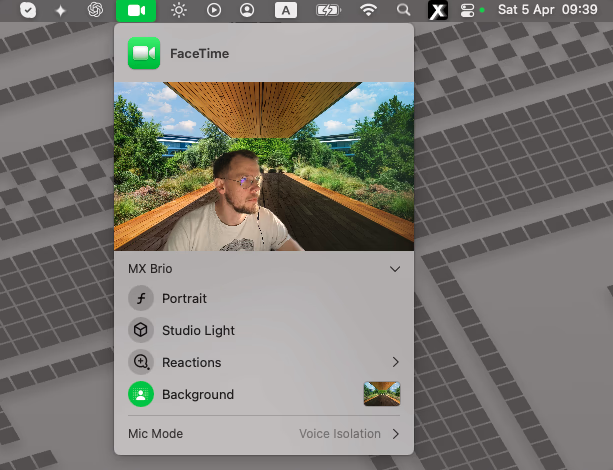
If your Mac doesn't support these, an iPhone used as a webcam through Continuity Camera can add them and gives a sharper picture.
6. Check your background
Clear what's directly behind you, or use Portrait blur or FaceTime's Background option. A plain wall a meter or two behind you looks better than a busy room, even with blur on.
7. Add a subtle beauty filter
FaceTime has no skin or face controls. If you still want small touch-ups after fixing the light, Xamera Face Studio gives you separate controls for skin smoothing, teeth whitening, face shape, eyes, nose, and lips. Separate controls let you soften skin a little without changing anything else.
- Install Xamera on an Apple-silicon Mac running macOS 15.5 or later, and complete its camera-extension setup.
- Open Face Studio and raise only the controls you need, a little at a time.
- In FaceTime, choose Video → Xamera Camera from the menu bar.
- Compare with the filter on and off in the FaceTime preview. If people would notice the filter, turn it down.

The same Xamera Camera feed works in Zoom, Google Meet, and Microsoft Teams, so you look the same in every app. Xamera's image controls for brightness, exposure, and contrast help when the light can't be changed.
Common mistakes
- Stacking effects: Studio Light plus a heavy beauty filter plus background replacement can look artificial. Use one lighting effect and keep filters subtle.
- Backlighting: no filter fully fixes a bright window behind you.
- A weak connection: video apps lower quality when the network is slow, which undoes everything above. Move closer to your router if the picture turns blocky.
Frequently asked questions
Why do I look bad on FaceTime?
Usually because of low or overhead light, a camera below eye level, and sitting too close to a wide-angle lens. Fix those three things first; filters matter much less.
Does FaceTime have a beauty filter?
No. FaceTime on Mac has Portrait, Studio Light, Edge Light, and other effects, but no skin smoothing or face controls. You can add those with a virtual camera such as Xamera and select it in FaceTime's Video menu.
How can I look better on FaceTime without a ring light?
Face a window, raise the camera to eye level, and turn on Studio Light or Edge Light if your Mac supports them. Edge Light uses your screen's edges as a soft light source.
How do I look better on Zoom?
The same light, camera height, and framing tips apply. Zoom also has Touch up my appearance in Settings → Video & effects. Xamera works in Zoom too if you want the same beauty settings in every app. See Zoom filters on Mac.
Does this work on iPhone?
The light, angle, and framing tips do. Xamera and the Mac Video menu steps are for Mac only. For more FaceTime-specific settings on Mac, see how to add filters to FaceTime on Mac.
If you liked this tutorial, check out Xamera Camera for macOS.