How to Turn Off Center Stage on a Mac
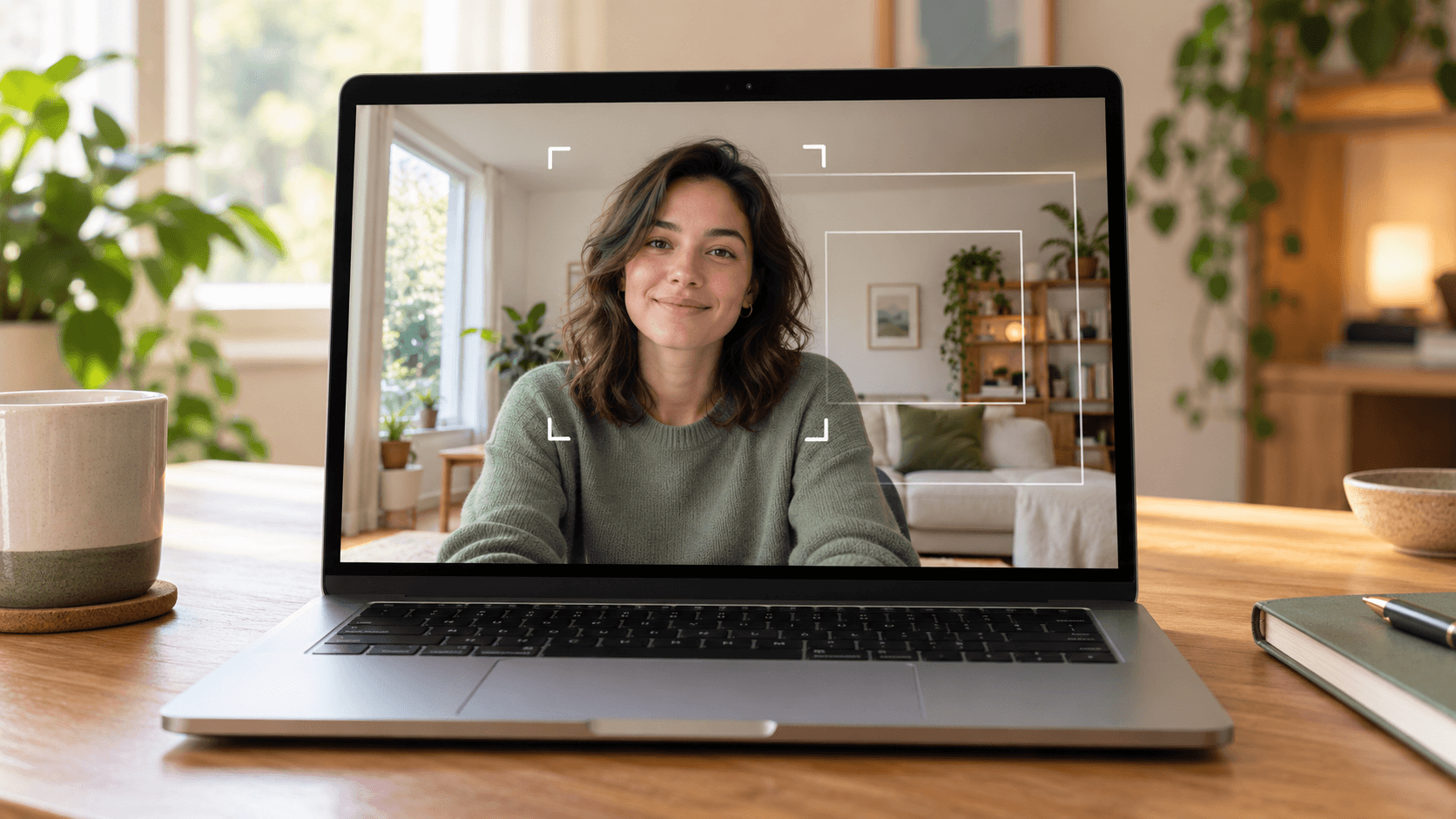
Quick answer: Center Stage is the feature that makes your Mac camera pan and zoom to follow you. To turn it off on macOS Sonoma 14 or later, open the app that's using the camera, click the Video menu (the green camera icon) in the menu bar, and click Center Stage so it's no longer highlighted. On macOS Ventura 13 or Monterey 12, click Control Center → Video Effects → Center Stage. You'll only see the option on a camera that supports it.
What Center Stage does
Center Stage pans and zooms the picture as you move, so you stay in the middle of the frame. Apple describes it as keeping people in the frame, so the shot also changes when someone joins you. It's useful when you walk around, but distracting when you want a steady shot or when the camera keeps zooming in on your face.
It isn't a setting inside FaceTime, Zoom, or Google Meet. macOS applies it to the camera, so it affects any app that uses that camera.
How to turn off Center Stage on macOS Sonoma or later
- Open the app you want to fix, such as FaceTime, Zoom, Microsoft Teams, or Google Meet in your browser, and turn on its camera.
- Click the Video menu in the menu bar. It's the green camera icon, and it only appears while an app is using the camera.
- Click Center Stage to turn it off. When it's off, the button is dimmed.
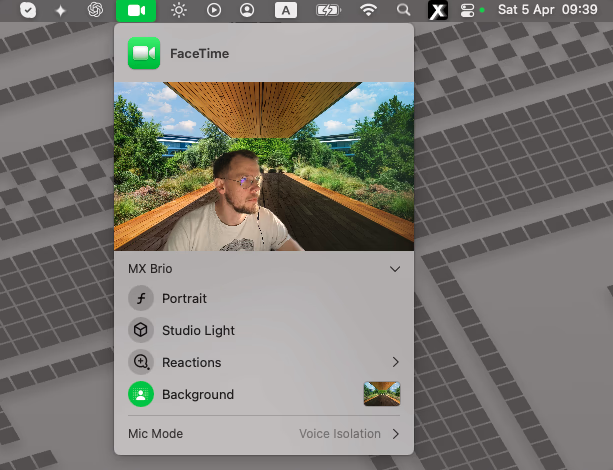
If another app still follows you, open the Video menu while that app is using the camera and check Center Stage there too.
How to turn off Center Stage on macOS Ventura or Monterey
- Turn on the camera in your video app.
- Click Control Center in the menu bar.
- Click Video Effects, then click Center Stage to turn it off.
These steps come from Apple's Center Stage guide.
Which Macs and cameras have Center Stage
According to Apple, Center Stage works with:
- MacBook Pro introduced in 2024 or later, using its built-in camera.
- MacBook Air introduced in 2025 or later, using its built-in camera.
- iMac introduced in 2024 or later, using its built-in camera.
- Apple Studio Display or Studio Display XDR, using the display's camera.
- Continuity Camera with iPhone 11 or later, except iPhone SE models.
Older Mac cameras don't have it. For example, a 2021 MacBook Pro's built-in camera has no Center Stage option, so the camera can't follow you by itself.
If the camera still zooms or follows you
If Center Stage is off or missing and the picture still moves, something else is reframing it:
- Google Meet's Framing effect. Meet has its own automatic framing that zooms in on your face. Turn off Framing in Google Meet.
- Zoom's Auto-framing. Zoom can reframe you too. Turn off Auto-framing in Zoom's Settings → Video & effects.
- Your webcam's own software. Some external webcams have automatic framing built in. Turn it off in the camera maker's app.
- The wrong camera. If you use your iPhone with Continuity Camera, check which camera the app is using in its camera settings.
Frame the shot yourself instead
With Center Stage off, some cameras let you set the framing by hand. Move the pointer over the video preview in the Video menu, then zoom, pan, or recenter. Apple calls this manual framing. Mac camera settings lists which cameras support it.
With Continuity Camera, you can also choose which iPhone camera Center Stage uses: click the arrow next to Center Stage in the Video menu, then choose Main or Ultra Wide.
Look better once the camera holds still
A steady frame makes lighting and small details more noticeable. On a Mac with Apple silicon, Xamera Face Studio adds separate controls for skin smoothing, teeth whitening, face shape, eyes, nose, and lips. Choose Xamera as the camera in FaceTime, Zoom, Google Meet, or Microsoft Teams.

Frequently asked questions
How do I stop my MacBook camera from following me?
Turn off Center Stage. While an app is using the camera, click the Video menu in the menu bar and click Center Stage so it's dimmed. On macOS Ventura or Monterey, use Control Center → Video Effects → Center Stage.
Why can't I find Center Stage on my Mac?
Either no app is using the camera, or your camera doesn't support it. Center Stage needs a MacBook Pro or iMac from 2024 or later, a MacBook Air from 2025 or later, a Studio Display, or an iPhone 11 or later with Continuity Camera.
Is Center Stage in System Settings?
No. It's only in the Video menu in the menu bar, or in Control Center → Video Effects on macOS Ventura and Monterey, and only while the camera is on.
Is Center Stage the same as Google Meet's automatic zoom?
No. Center Stage is a macOS feature for the camera. Google Meet's Framing effect is part of Meet. If Meet zooms in on your face, turn off Framing in Meet.
Can I turn off Center Stage on a Studio Display?
Yes. Use the same Video menu while an app is using the Studio Display camera, and click Center Stage to turn it off.
If you liked this tutorial, check out Xamera Camera for macOS.