FilterOnMe vs Xamera: Webcam Beauty Filters on Mac Compared
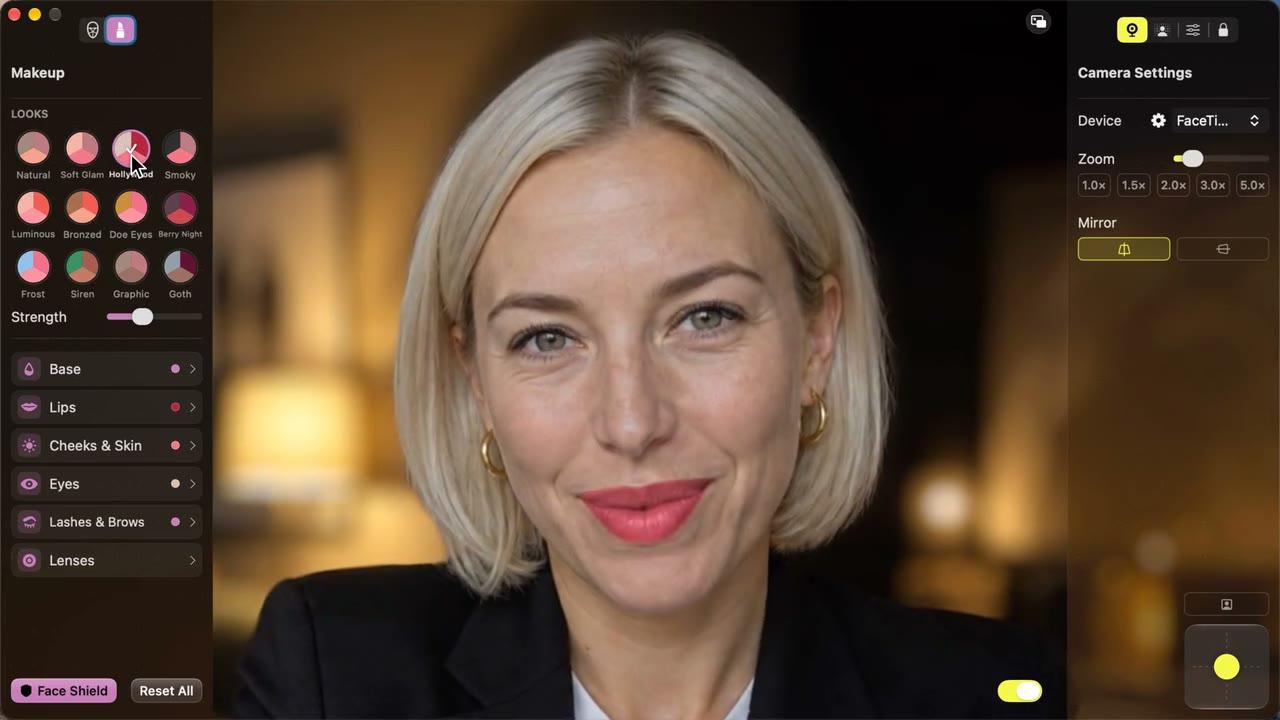
Quick answer: Both apps add real-time skin smoothing, face shaping, and makeup to your camera, and both work in FaceTime, Zoom, Google Meet, Microsoft Teams, and OBS. Choose FilterOnMe if you also need Windows, or your Apple-silicon Mac runs macOS 13 or 14 (it also offers an older build for macOS 12.4). Choose Xamera if you want background blur and replacement, privacy tools, and camera controls in the same app, or prefer installing from the Mac App Store. Xamera needs macOS 15.5 or later.
Xamera is made by NANOSQUID, the publisher of this page. We've described FilterOnMe from its own website and help center, checked on November 11, 2026. We haven't benchmarked the two apps side by side, so we don't make claims about which one looks better or runs faster. You can try both before paying, so test them with your own camera and lighting.

FilterOnMe and Xamera at a glance
Platforms
- FilterOnMe: Mac and Windows, downloaded from filteronme.com.
- Xamera: Mac only, from the Mac App Store.
Mac requirements
- FilterOnMe: Apple silicon (M1 or newer) and macOS 13 or later, according to its Mac setup guide, which also links an older build for macOS 12.4–12.x. There's no Intel support.
- Xamera: Apple silicon and macOS 15.5 or later. See system requirements.
Beauty and makeup
- FilterOnMe: skin smoothing, teeth whitening, foundation, face thinning, face and nose shaping, blush, soft light, lipstick, lip filler, eye shaping, eye color, eyeshadow, eyeliner, eyebrows, and photo filters.
- Xamera: Face Studio's Face tab shapes your face, nose, lips, and eyes. The Makeup tab has 12 one-tap looks plus foundation, concealer, lipstick, gloss, lip liner, blush, contour, highlight, bronzer, freckles, eyeshadow, eyeliner, lashes, brows, colored lenses, skin smoothing, and teeth whitening.
Backgrounds and privacy
- FilterOnMe: its site focuses on face filters and doesn't list its own background effects. Its app guides point you to the video app's built-in blur and virtual backgrounds instead.
- Xamera: background blur, tint, image or solid-color replacement, face blur and pixelation, and hiding your camera when someone else walks into view or you step away.
Camera controls
- FilterOnMe: not listed on its site.
- Xamera: exposure, brightness, contrast, saturation, sharpness, and other color controls, plus zoom, one-click auto framing, and mirroring. Works with built-in, external, and Continuity Camera inputs.
Price
- FilterOnMe: a 7-day free trial with no credit card. Premium is $7.99 a month billed yearly, or $19.99 billed monthly, according to its homepage. Its pricing page describes Premium as having "no watermark or time limits."
- Xamera: a free download. You can try every filter in Xamera's own preview for free, but using the Xamera camera in other apps needs a Full Access subscription; new subscribers may be offered a free week. Check the App Store listing for current prices in your country.
Processing
- Both say your video is processed on your computer and not uploaded.
Makeup and beauty filters
This is where the two apps overlap most. Both let you smooth skin, whiten teeth, reshape your face, and add foundation, blush, lipstick, eyeshadow, eyeliner, brows, and a different eye color.
Both apps let you reuse a finished look. Xamera 4.0 includes twelve ready-made looks, from Natural and Soft Glam to Smoky and Goth, applied at half strength, and a Strength slider makes the whole look subtler or bolder. You can then open Base, Lips, Cheeks & Skin, Eyes, or Lashes & Brows to change individual products and shades. FilterOnMe lets you save your own filter combinations as presets and pick from presets shared by its community, according to its FaceTime guide. In Xamera, lipstick masking helps keep color on your lips; results depend on tracking and lighting. See beauty filters on Mac for how Face Studio works.
FilterOnMe lists customizable filters and a few controls Xamera doesn't name the same way, such as lip filler and soft light. Xamera's Face tab has separate upper and lower lip size sliders, which can make lips look fuller, but it has no separate lighting filter in Face Studio. If a specific effect matters to you, try it in both trials.
Backgrounds, privacy, and camera controls
FilterOnMe is focused on how your face looks. For background blur, its guides use the effects already in Zoom, Teams, or Google Meet. That works in those apps, but FaceTime's Portrait blur only works on supported Macs, and some apps have no blur at all.
Xamera puts background, privacy, and camera adjustments in the same camera as the beauty filters, so the same image appears in every app:
- Background blur, tint, or replacement with an image or a solid color, such as green for keying in OBS.
- Face blur or pixelation for anonymous streaming.
- Hide the camera when someone else is in view or when you leave the frame.
- Face Shield, which helps prevent an unfiltered frame if face tracking briefly loses you.
- Color grading and full-frame looks, zoom, auto framing, and mirroring.
If you only need a beauty filter and you're happy with your meeting app's own background blur, you won't miss these.
Setup
Both apps use a macOS camera extension, so the setup is similar:
- Install the app. FilterOnMe is downloaded from its website and dragged into Applications. Xamera installs from the Mac App Store.
- Allow camera access, then approve the camera extension. On macOS 15 or later, that's in System Settings → General → Login Items & Extensions → Camera Extensions.
- FilterOnMe asks you to sign in with your email. Xamera doesn't need an account.
- Choose your physical camera in the app, then pick Filteronme Camera or Xamera as the camera in FaceTime, Zoom, Google Meet, Teams, or OBS.
The app needs to stay open while you're on a call. For Xamera, see the installation guide.
Which one should you choose?
Choose FilterOnMe if:
- You also use a Windows PC and want the same filters on both.
- Your Apple-silicon Mac runs macOS 13 or 14, and you can't update to macOS 15.5.
- You want a separate soft light filter, which FilterOnMe lists and Xamera's Face Studio doesn't have.
Choose Xamera if:
- You want beauty filters, background effects, and privacy tools in one camera that looks the same in FaceTime and any other app where you can pick a camera.
- You want twelve makeup looks included with the app, with a Strength slider to make each one subtler or bolder.
- You'd rather install from the Mac App Store and not create an account.
Neither app runs on Intel Macs, iPhone, or iPad. On an Intel Mac, your meeting app's own touch-up setting is the closest option; see Zoom's Touch up my appearance.
Limitations
- This comparison is based on each product's website and documentation, not side-by-side testing. Features and prices change, so check FilterOnMe's site and Xamera's App Store page before you choose.
- Face filters and makeup depend on face tracking. Low light, steep angles, or a hand in front of your face make both less precise. Good front lighting helps more than any slider; see how to look good on camera.
- Xamera has no Snapchat-style AR lenses, and FilterOnMe's published feature list doesn't advertise them. For those, see Snap Camera alternatives for Mac.
Frequently asked questions
Is FilterOnMe free?
It has a 7-day free trial without a credit card. After that, its site lists Premium at $7.99 a month billed yearly, or $19.99 billed monthly. Its pricing page describes Premium as having no watermark or time limits.
Does FilterOnMe work on Intel Macs?
No. Its Mac setup guide says it needs an Apple-silicon Mac (M1 or newer) running macOS 13 or later. Xamera also needs Apple silicon.
Does FilterOnMe work with FaceTime?
Its FaceTime guide says yes: with FilterOnMe running, select Filteronme Camera as FaceTime's camera. On a Mac, that's in FaceTime's Video menu in the menu bar. Xamera works the same way; choose Xamera instead.
Can I use FilterOnMe and Xamera at the same time?
They're both cameras, so a meeting app can only use one of them at a time. You can install both and switch between them in the app's camera menu while you compare them.
Is there a FilterOnMe alternative without an account?
Xamera doesn't ask you to sign in. You install it from the Mac App Store, turn on its camera extension, and choose Xamera in your video app.
Which is better for Zoom?
Both work in Zoom as a camera. If you only want a light touch-up, Zoom's own Touch up my appearance may be enough, and it's free. See Zoom filters on Mac for how it compares with a dedicated beauty filter.
If you liked this tutorial, check out Xamera Camera for macOS.