Google Meet Camera Not Working? How to Fix It
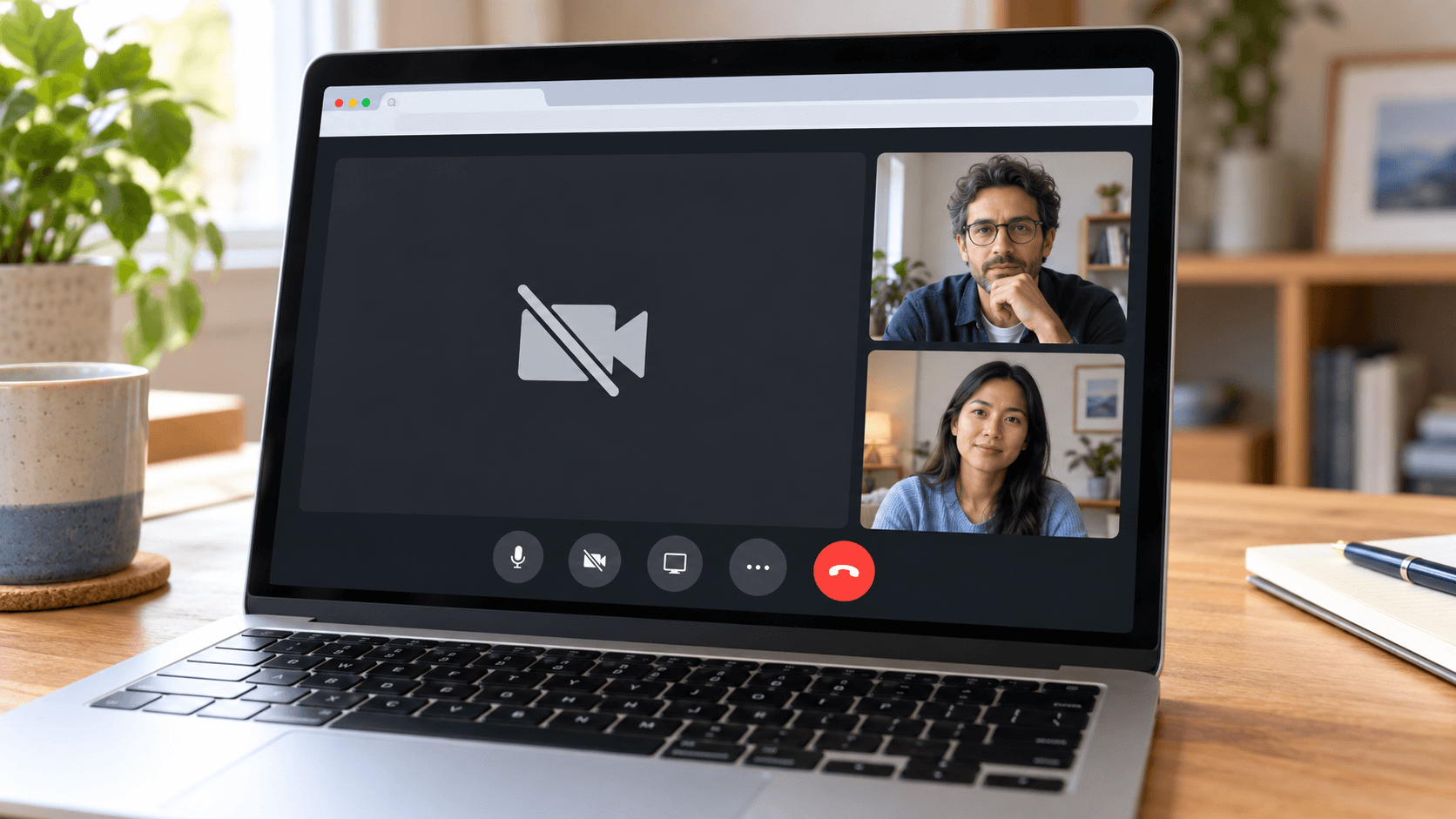
Quick answer: Close every other app and browser tab that uses the camera, then reload Google Meet. Make sure Meet is using the right camera in Settings → Video → Camera. If you see Camera failed, your browser can't reach the camera: allow it for meet.google.com in the browser, and on a Mac turn on your browser in System Settings → Privacy & Security → Camera. Then quit and reopen the browser.
Quick checks first
Google's camera troubleshooting guide starts with these:
- The camera is connected, turned on, and facing you. Open any privacy shutter or cover.
- Meet is using the right camera, not a screen-capture device or a virtual camera you didn't mean to pick.
- No other app is using the camera. Close Zoom, Teams, FaceTime, and other meeting tabs, then reload Meet.
- Your browser is up to date.
- The camera works in another app. On a Mac, open Photo Booth. On Windows, open the Camera app.
If the camera doesn't work in any app, the problem isn't Meet. On a Mac, follow Mac camera not working.
Choose the right camera in Meet
Before joining, click the camera picker under your preview. During a meeting, open More options → Settings → Video and choose your camera under Camera.
Built-in cameras, external webcams, an iPhone through Continuity Camera, and camera apps can all appear in the list. If the preview is black or shows the wrong picture, try each one.
Allow the camera in your browser
Meet needs permission to use the camera on meet.google.com.
- Chrome: click the icon at the left of the address bar and allow Camera. Or open
chrome://settings/content/camera, select Sites can ask to use your camera, and remove meet.google.com from the blocked list. - Safari: choose Safari → Settings → Websites → Camera and set meet.google.com to Allow.
- Firefox and Edge: click the permissions icon at the left of the address bar and allow the camera.
Reload Meet after changing a permission.
Allow your browser to use the camera
Your computer also has to let the browser use the camera.
- Mac: open System Settings → Privacy & Security → Camera and turn on your browser. Quit and reopen the browser after you allow it.
- Windows: open Settings → Privacy & security → Camera and turn on Camera access, Let apps access your camera, and Let desktop apps access your camera.
On a Mac, also check System Settings → Screen Time → Content & Privacy in case the camera is restricted.
What "Camera failed" means
Google says this error usually means the browser can't access the camera. Work through the two permission sections above, close other apps that use the camera, then quit and reopen the browser.
If you use a camera app
Camera apps such as Xamera add their own camera to Meet's list. If Meet shows the wrong picture, choose the camera you want in Settings → Video → Camera. If you're trying to use Xamera and it isn't listed, follow the Xamera installation guide, then quit and reopen your browser.
Once your camera works in Meet
Meet has backgrounds, filters, and a light touch-up. Google Meet filters on Mac explains each one, and how to blur your background in Google Meet covers blur. If Meet zooms in on your face, turn off Framing.
For separate skin, teeth, and face-shape controls on a Mac with Apple silicon, use Xamera Face Studio and choose Xamera as Meet's camera.

Frequently asked questions
Why is my camera not working in Google Meet?
Usually another app is using the camera, Meet is set to the wrong camera, or the browser doesn't have camera permission. Close other apps, check Settings → Video → Camera in Meet, and allow the camera in your browser and computer settings.
Why does Google Meet say "Camera failed"?
It usually means the browser can't access the camera. Allow the camera for meet.google.com in your browser and allow the browser in your computer's camera settings, then reopen the browser.
Why is my Google Meet camera black on a Mac?
Check System Settings → Privacy & Security → Camera and make sure your browser is turned on. Then make sure no other app is using the camera and that Meet is set to the right camera.
How do I change the camera in Google Meet?
Before joining, use the camera picker under your preview. During a call, open More options → Settings → Video and choose a camera.
My camera works in Zoom but not in Google Meet. Why?
Meet runs in your browser, so it needs the browser's site permission and the browser's system permission. Zoom is a separate app with its own permission.
If you liked this tutorial, check out Xamera Camera for macOS.