Webcam filters for Mac
Webcam and camera filters for your Mac
macOS has video effects, not camera filters
Your Mac's Video menu offers Portrait blur, Studio Light, Edge Light, Center Stage, Reactions, and Background on supported hardware, but no color filters or beauty filters. To add those to your MacBook or external camera, use a virtual camera app such as Xamera. It filters the live feed, and you then select Xamera in FaceTime, Zoom, Google Meet, Microsoft Teams, or OBS.
Platform and product information reviewed September 26, 2026.
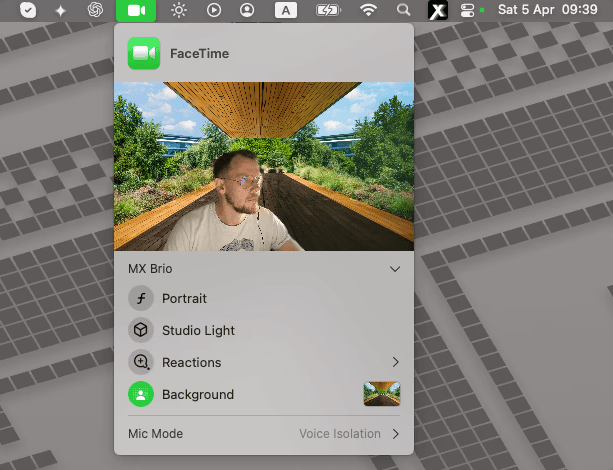
Apple notes that available video effects depend on the camera, Mac model, and macOS version. Check Apple's current video-effects guide
Apple's video effects or a camera filter app?
Choose the smallest tool that gives you the result. You don't need another app for Portrait blur, Studio Light, Center Stage, Reactions, or a supported virtual background.
Apple's built-in video effects
Best for quick framing, lighting, reactions, and backgrounds
They are built into macOS, need no extra camera source, and work in FaceTime and most video apps on supported Macs.
Xamera Camera
Best for beauty filters, color looks, image control, and privacy
Xamera processes your physical camera first. FaceTime or your meeting app then receives the finished feed through Xamera.
Use both carefully
Best when each tool does a different job
A Xamera color look can work with Apple's framing, but stacking two background or lighting effects can create unnatural edges.
Xamera Camera
What Xamera's camera filters add
Xamera fills the gap Apple's effects leave: filters that change how you and the whole frame look. Configure the feed in Xamera, then select Xamera in any app that lets you choose a camera.

- Face Studio beauty controls for skin, teeth, face shape, eyes, nose, and lips
- Full-frame looks such as Golden Hour, Vintage, Vivid, Mono, Noir, and Sepia
- Brightness, exposure, contrast, saturation, and other image controls
- Background blur, image replacement, or a solid color
- Face blur, pixelation, and automatic camera privacy controls
- One processed feed for FaceTime, Zoom, Google Meet, Microsoft Teams, and OBS
Beauty Filters
See the adjustment on the same shot
The comparison uses the same recording on both sides. Drag the divider to judge the overall result instead of relying on a staged still image.
Learn about Face Studio in XameraHow to add camera filters on a Mac
- 1Install Xamera on a compatible Apple-silicon Mac and complete its camera-extension setup.
- 2Open Xamera, choose your physical camera, and pick a filter, beauty setting, background, or privacy effect.
- 3Open FaceTime and start a call, or open your meeting app's video settings.
- 4Choose Xamera. In FaceTime it's in the Video menu in the menu bar; in other apps it's in the camera list.
- 5Check the app's preview and make final adjustments in Xamera before the call matters.
Mac camera filter limitations
- Apple's available effects vary by camera, Mac model, and macOS version.
- Xamera requires Apple silicon and macOS 15.5 or later.
- The destination app must let you select a camera source, and the Xamera camera extension must be enabled.
- Using two versions of background separation or lighting at once can make the image look overprocessed.
- Always review the final preview in the calling app rather than relying only on the Xamera preview.
Mac camera filter questions
Does a Mac have built-in camera filters?
Not color or beauty filters. macOS provides Portrait, Studio Light, Edge Light, Center Stage, Reactions, and Background effects on supported hardware and macOS versions. They change lighting, background, and framing rather than the look of the image. Photo Booth has fun effects, but only inside Photo Booth.
Can I use camera filters on my MacBook in Zoom or Google Meet?
Yes. Apple's video effects work in most video apps. For color looks and beauty filters, set them in Xamera and choose Xamera in the app's camera settings.
Can I use beauty filters in FaceTime on a Mac?
Yes. Configure Face Studio in Xamera, complete the camera-extension setup, and choose Xamera from FaceTime's Video menu.
Why does Xamera not appear in my video app?
Complete the Xamera camera-extension setup, confirm camera permission, then quit and reopen the video app. Check the full installation guide if the camera source is still missing.
Add camera filters to your Mac
Use Apple's built-in effects first, then add Xamera when you need beauty controls, color looks, or privacy features that macOS doesn't provide.